

Chrome · Edge · Firefox · Safari
Sagar Club Login on PC
No app needed on a computer – Sagar Club works in any modern browser. Here’s how to log in, what to expect and how to stay safe on shared machines.
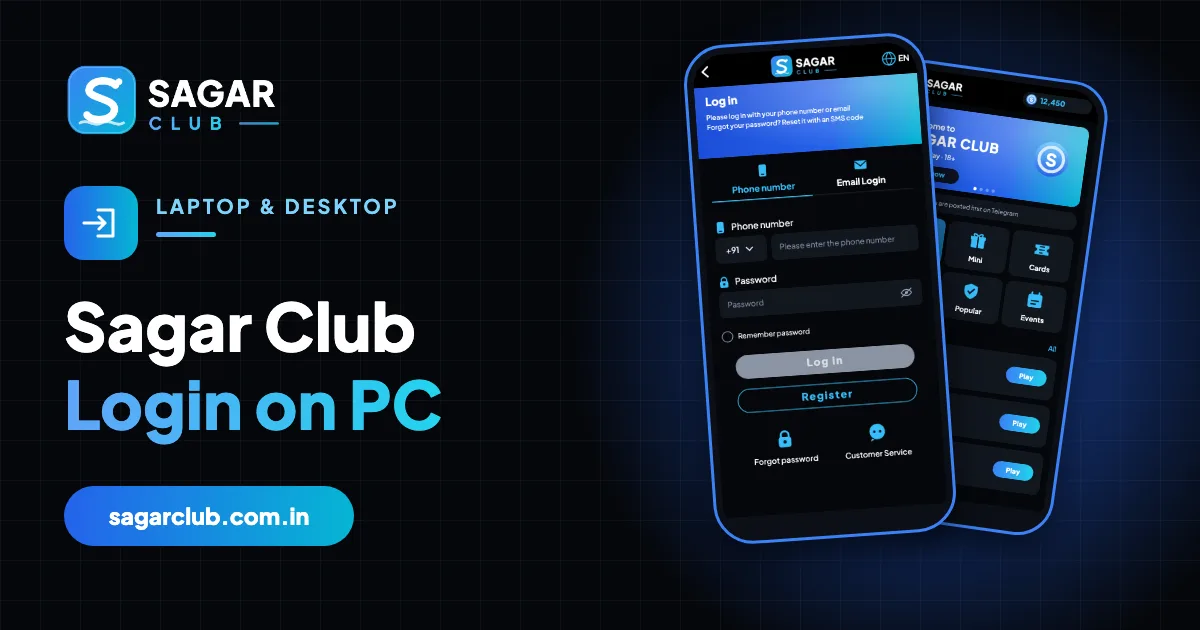
Sagar Club is designed for phones, but plenty of people prefer a bigger screen and a real keyboard. The good news is that the website works in Chrome, Edge, Firefox and Safari on Windows, Mac, Linux and Chromebooks. The login is the same account you use on your phone.
The main differences on a computer are the layout (a phone-shaped column in the middle of the screen), the SMS code (which still goes to your phone) and the extra care you need on computers other people use.
Contents
- Log in on a computer, step by step
- Which browser works best?
- Why the site looks like a phone
- OTP codes when you’re on a computer
- Using a shared, office or cyber-café computer
- Fixing common browser problems
- Keyboard shortcuts that help
- Phone and computer at the same time
- Is there a Sagar Club desktop app?
- Chromebooks
- PC login checklist
- A careful login on a shared computer
- Desktop vs phone: what’s different
- Making the laptop layout comfortable
- Using a work computer
- Mac-specific tips
- Logging out properly
- FAQs
Log in on a computer, step by step
- Open your browser and type the official Sagar Club address yourself, or use a bookmark you made from the official link.
- Click Log in.
- Keep +91 and type your 10-digit number.
- Type your password and click Log in.
- If you’re on a shared computer, use a private window and don’t let the browser save the password.
Which browser works best?
| Browser | Works | Private window |
|---|---|---|
| Google Chrome | Excellent | Incognito: Ctrl+Shift+N |
| Microsoft Edge | Excellent | InPrivate: Ctrl+Shift+N |
| Mozilla Firefox | Very good | Private: Ctrl+Shift+P |
| Safari (Mac) | Very good | Private: Cmd+Shift+N |
| Brave / Opera | Good – shields may block parts | Allow the site in shields |
Keep the browser updated. Very old versions (or Internet Explorer) won’t load the site properly.
Why the site looks like a phone
Sagar Club uses a mobile layout everywhere, so on a widescreen monitor it appears as a tall column in the middle with space on either side. Nothing is broken. You can make it more comfortable with zoom: Ctrl and + (Cmd and + on Mac) to enlarge, Ctrl and – to shrink, Ctrl and 0 to reset.
OTP codes when you’re on a computer
A normal login doesn’t need a code. If you register or reset your password from a computer, the 6-digit SMS still goes to your phone – keep it nearby and type the code into the browser. If your phone and computer are linked (Phone Link on Windows, Messages on Mac), the code may appear on the computer too; that’s fine on your own machine.
Using a shared, office or cyber-café computer
Shared computers are where accounts most often get taken over – a saved password, a forgotten logout, or a keylogger on a public machine.
- Open a private / incognito window.
- Never tick ‘Remember password’ or let the browser save it.
- Log out from Account → Log out when you finish.
- Close every browser window.
- On a public computer, change your password later from your own phone.
Fixing common browser problems
Login button does nothing
Disable ad-blockers or privacy extensions for the site, then reload.
Logged out every time you close the browser
Your browser clears cookies on exit – allow cookies for the official site.
Page loads half-way
Clear cached images (Ctrl+Shift+Delete → Cached images) and reload.
Text is tiny
Use Ctrl + to zoom.
Sound doesn’t play
Click once on the page – browsers block sound until you interact.
Keyboard shortcuts that help
| Zoom in / out / reset | Ctrl + / Ctrl – / Ctrl 0 (Cmd on Mac) |
| Reload | F5 or Ctrl R |
| Hard reload | Ctrl Shift R |
| New private window | Ctrl Shift N (Chrome/Edge), Ctrl Shift P (Firefox) |
| Bookmark this page | Ctrl D |
Phone and computer at the same time
You can log in on both, but a fresh login may end the older session – the first device will say ‘session expired’. Choose one per session. If you see that message without having logged in elsewhere, change your password.
Is there a Sagar Club desktop app?
No. Anything offering a ‘Sagar Club for Windows’ download is not official. Don’t use Android emulators either – they’re a common route for bundled malware. The browser is simpler and safer.
Chromebooks
Chromebooks run Chrome, so the website works perfectly. Some Chromebooks can also run Android apps, but installing the APK there isn’t necessary – the browser version is the same account and gets updates automatically.
PC login checklist
- Typed or bookmarked official address.
- Updated browser.
- Private window on any computer that isn’t yours.
- Password not saved on shared machines.
- Logged out and browser closed at the end.
A careful login on a shared computer
Imagine you’re at a cousin’s house and want to check your Sagar Club account on their laptop. You open Chrome and press Ctrl + Shift + N for an Incognito window – the dark one. You type the official address yourself rather than searching, because search ads can lead to copies. You log in with your number and password. When Chrome asks whether to save the password, you click Never. When you’re done, you open Account and click Log out, then close the Incognito window completely. Nothing about your login remains on that laptop.
At a cyber café or office, you’d do the same, and afterwards change your password from your own phone just in case – public computers are where keyloggers live.
Desktop vs phone: what’s different
| Laptop | Phone | |
|---|---|---|
| Layout | Phone-shaped column | Full screen |
| Typing | Physical keyboard – fewer typos | On-screen keyboard |
| SMS codes | Arrive on your phone | Arrive on the same device |
| Notifications | None | With the app |
| Risk | Shared computers | Lost phone |
Making the laptop layout comfortable
Because the site is designed for phones, it can look small on a big monitor. Zoom with Ctrl and + until text is comfortable – 125% or 150% usually works. You can also make the browser window narrower and taller so the layout fills it. On a laptop with a touchscreen, you can tap the screen just like a phone.
Using a work computer
Company laptops are often monitored and may block game sites; some workplaces consider gaming on work devices a policy breach. Keep Sagar Club on your personal devices and outside work hours.
Mac-specific tips
- Safari’s Private window: Cmd + Shift + N.
- Zoom: Cmd + / Cmd –.
- If Safari won’t keep you logged in, check Settings → Privacy → ‘Block all cookies’ is off.
- iCloud Keychain can fill your password on your own Mac.
Logging out properly
Closing a tab doesn’t always end your session – the browser may remember you next time. Use Account → Log out, then close the window. On your own laptop, staying logged in is fine; on anyone else’s, always log out.
Open Sagar Club the right way
Use the official app or website – one Sagar Club account works for login on every device.
Frequently asked questions
Can I use Sagar Club on a laptop?
Yes, in any modern browser.
Is there a Windows or Mac app?
No – use the website.
Do I need an OTP to log in on PC?
No, only to register or reset a password.
Why is the page so narrow?
It uses the mobile layout. Zoom in if you like.
Is it safe on an office computer?
Use a private window, don’t save the password, and log out.
Can I play games on a laptop too?
Yes – the whole lobby works in the browser.
Why does my laptop say ‘session expired’?
You logged in on your phone afterwards; log in again.