

Find your error, follow the fix
Sagar Club Login Problems
Can’t get into Sagar Club? Find the exact message you’re seeing below and follow the fix. Most take under a minute.
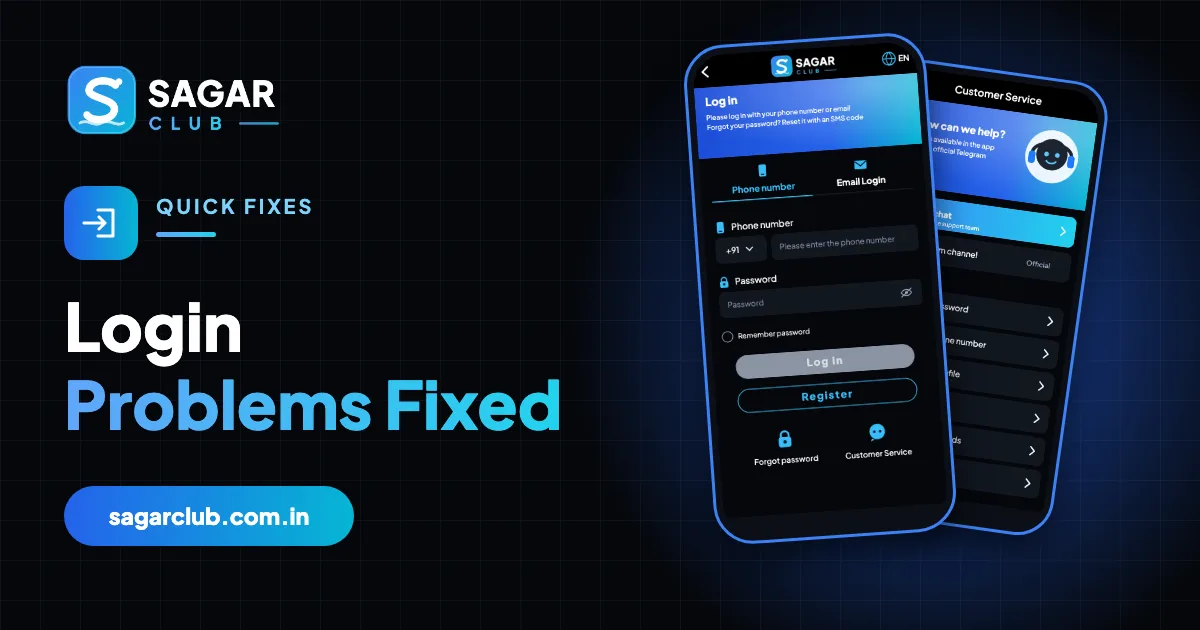
Login problems feel personal – it’s your account and it won’t let you in – but almost all of them fall into a handful of patterns. A typed number that’s slightly wrong. A password the keyboard quietly changed. A phone that’s lost its connection. An old version of the app. A session that ended because you logged in somewhere else. Once you know which pattern you’re in, the fix is usually quick.
This page is organised by symptom. Find what you’re seeing, try the fix, and only move to the next one if it doesn’t work. If nothing helps, the last section explains how to get a fast answer from support.
Contents
- Quick diagnosis
- Account does not exist
- Incorrect password
- Too many attempts
- Network error, timeout or ‘server busy’
- Endless loading or blank screen
- Session expired and random logouts
- Problems specific to iPhone
- Problems specific to laptops
- When to contact support
- Preventing login problems
- Problems after an app update
- Problems on public Wi-Fi
- FAQs
Quick diagnosis
| What you see | Type of problem | Jump to |
|---|---|---|
| A message mentions the account or number | Number / registration problem | Account does not exist |
| A message mentions the password | Password problem | Incorrect password |
| A message about attempts or locks | Temporary lock | Too many attempts |
| No message, just spinning | Connection or version | Endless loading |
| You were in, then got kicked out | Session problem | Session expired |
Account does not exist
This means the server couldn’t find an account for the number you typed. It almost never means your account has been deleted. Far more often, the number isn’t quite the one you registered with.
- Re-type the number: exactly 10 digits, no 0 in front, no +91 (it’s already in the country box).
- Remove spaces – copy-paste from contacts often adds them.
- Try your other SIM numbers – many people registered with a second SIM and forgot.
- If you registered by email only through a bound address, use the Email Login tab.
- Still not found? You may never have completed registration – the SMS step is what creates the account. Register again.
Incorrect password
The number was found, so your account exists – the password didn’t match. Before assuming you’ve forgotten it, check how it was typed. Phone keyboards add capital letters, swap similar characters and sometimes insert a full stop. Tap the eye icon and read the password slowly.
First letter capitalised
Most keyboards do this automatically. Retype with lowercase if that’s how you set it.
Wrong keyboard language
Switching keyboards can change symbols. Switch back to English.
Old password
If you changed it recently, the new one is the only one that works.
Saved password is outdated
Your password manager may still hold the old one. Type it manually.
After two careful tries, stop guessing and use forgot password. Each wrong guess brings you closer to a temporary lock.
Too many attempts
After several wrong passwords in a row, Sagar Club temporarily blocks further attempts on that account. It protects you from someone guessing their way in. The lock usually lasts 15 to 30 minutes, and every extra attempt during the lock can extend it.
- Stop trying.
- Wait at least 30 minutes.
- Use forgot password to set a new one rather than guessing again.
- If you didn’t make those attempts yourself, someone may be trying your number – change your password and turn on alerts.
If the message talks about a restriction or review rather than attempts, see account locked.
Network error, timeout or ‘server busy’
These mean your phone couldn’t talk to the server properly. The login request either didn’t arrive or the reply didn’t come back.
- Switch between Wi-Fi and mobile data.
- Turn off any VPN, ad-blocking DNS or data-saver.
- Captive Wi-Fi (hotels, stations) may need you to accept terms in a browser first.
- Turn airplane mode on for ten seconds, then off.
- If many people report problems at once, check the official Telegram for maintenance notices.
Endless loading or blank screen
The button spins forever, or the app opens to white. This is almost always a connection problem (see above) or an outdated app.
- Close the app fully (swipe it away from recent apps) and reopen.
- Update the app from the in-app prompt or the official site – app download.
- Clear the app cache: Settings → Apps → Sagar Club → Storage → Clear cache.
- In a browser, open a private tab. If it works there, clear the normal tab’s site data.
- Reinstall from the official site as a last resort.
Session expired and random logouts
You were logged in and suddenly see the login screen or ‘session expired’. Sagar Club allows one account on more than one device, but a fresh login can end older sessions. Other causes are less obvious:
| Cause | Fix |
|---|---|
| You logged in on another phone or browser | Expected – log in again |
| Battery saver cleared app data | Exclude Sagar Club from battery optimisation |
| Browser clears cookies on exit | Allow cookies for the official site |
| App was updated | Log in once after updates |
| You didn’t do any of these | Change your password – someone else may be logging in |
Problems specific to iPhone
On iPhone, the two classic culprits are Private Browsing (the web app forgets you every time) and Safari’s Block All Cookies setting. Both are explained on Sagar Club iPhone.
Problems specific to laptops
Ad-blockers and privacy extensions sometimes stop the login button working. Disable them for the official site and reload. See Sagar Club login on PC.
When to contact support
If you’ve tried the right fix, waited 30 minutes and still can’t log in, contact customer support through the app. A good message includes:
- The exact error text (a screenshot is best).
- Roughly when it started.
- Your device and whether it’s the app or a browser.
- Your UID if you know it.
- What you’ve already tried.
Never send your password or OTP – support doesn’t need them, and nobody genuine will ask.
Preventing login problems
- Bind an email as a backup login.
- Use a password manager.
- Keep the app updated.
- Use one device at a time.
- Bookmark the official address so you never land on a copy.
Problems after an app update
Updates occasionally reset sessions, so being asked to log in once after an update is normal. If the app crashes or shows a blank screen after updating, close it fully and reopen; if that fails, clear the cache (not the data) and try again. Very rarely an update needs a fresh install – download it from the official site, never from a link someone sends you.
Problems on public Wi-Fi
Hotel, station and café Wi-Fi often requires you to accept terms in a browser before anything else works. Until you do, apps can’t connect and the login just spins. Open any website in your browser, accept the Wi-Fi terms, then return to Sagar Club. And on public Wi-Fi, double-check you’re on the official address – public networks are a favourite place for fake pages.
Open Sagar Club the right way
Use the official app or website – one Sagar Club account works for login on every device.
Frequently asked questions
Has my Sagar Club account been deleted?
Almost certainly not. ‘Account does not exist’ usually means the number was typed differently.
How long does a login lock last?
Usually 15–30 minutes.
Why does the login button just spin?
Connection or an old app version.
Why do I keep getting logged out?
Another device, battery saver or cleared cookies.
Can support log in for me?
No.