

Safari · Home Screen · No App Store
Sagar Club on iPhone
On iPhone, Sagar Club runs as a home-screen web app from Safari. It looks and behaves like an app – and it’s the safest way to use Sagar Club on iOS.
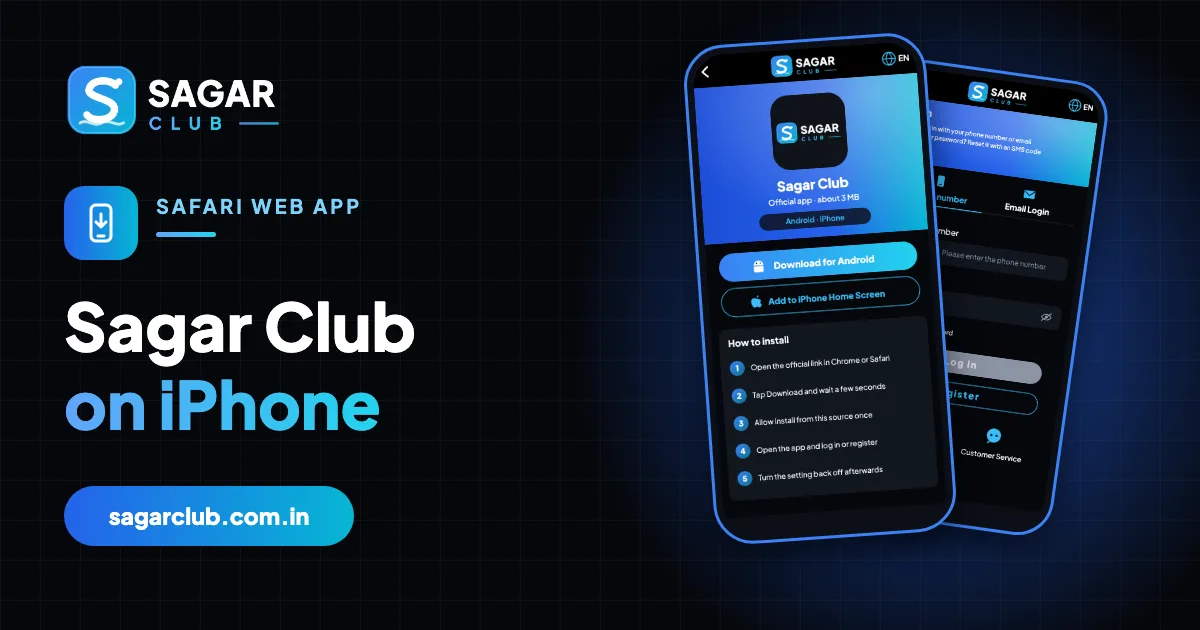
iPhone users often search the App Store for Sagar Club and find nothing. That’s expected: the iPhone version isn’t an App Store app. Instead you open the official website in Safari and add it to your home screen. The result opens full-screen with its own icon, remembers your login and updates itself every time you open it.
This page covers the four-tap setup, logging in, notifications, the iOS settings that cause logouts, iPad tips, and the one thing you should never do – install a profile.
Contents
- Add Sagar Club to your iPhone home screen
- What you get – and what you don’t
- Logging in on iPhone
- Turning on notifications
- Why you keep getting logged out on iPhone
- Display and layout tips
- Never install a profile
- iPad
- Chrome or other browsers on iPhone
- Removing Sagar Club from your iPhone
- iPhone checklist
- Why a web app is the safer choice on iPhone
- A careful iPhone setup, start to finish
- Using Sagar Club on a family iPad
- Common iPhone myths
- FAQs
Add Sagar Club to your iPhone home screen
- Open Safari (it must be Safari for the best result).
- Go to the official Sagar Club website.
- Tap the Share button – the square with an upward arrow, at the bottom of the screen.
- Scroll down and tap Add to Home Screen.
- Keep the name ‘Sagar Club’ and tap Add in the top-right corner.
- Go to your home screen and open the new Sagar Club icon.
- Log in or register.
If you don’t see ‘Add to Home Screen’, scroll further down the share sheet or tap Edit Actions to add it. On iPad, the Share button is at the top of the screen.
What you get – and what you don’t
| Feature | iPhone web app |
|---|---|
| Full-screen app with its own icon | Yes |
| Login remembered | Yes (unless cookies are cleared) |
| Automatic updates | Yes – every time you open it |
| Notifications | Yes on iOS 16.4+, once allowed |
| App Store listing | No |
| Storage used | Very little |
| Profiles or certificates | Never needed |
Because it’s a web app, it can only do what Safari can do. It can’t read your messages, photos or contacts, and it can’t run in the background. For an app like this, that’s a good thing.
Logging in on iPhone
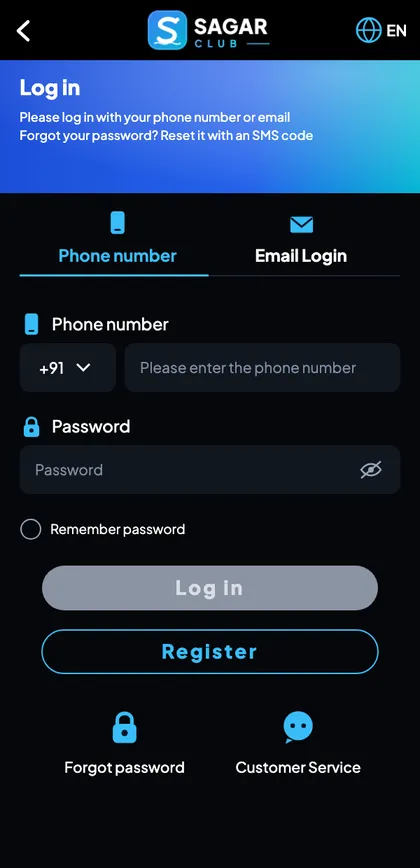
Login is identical to Android: tap Log in, keep +91, type your 10-digit number and your password. iCloud Keychain can save the password and fill it next time – accept the prompt only on your own iPhone.
If you registered on Android, the same details work here. Your account lives on Sagar Club’s servers, not on a device. Full walkthrough: Sagar Club login.
Turning on notifications
iOS 16.4 and later allow home-screen web apps to send notifications. Open Sagar Club from its home-screen icon (not from Safari), and allow notifications when asked. If you said no by mistake, go to Settings → Notifications → Sagar Club and switch them on. Older iOS versions don’t support web-app notifications – updating iOS fixes that.
Why you keep getting logged out on iPhone
Private Browsing was on
If you added the icon while Safari was in Private mode, it forgets you every time. Delete the icon, turn Private off, and add it again.
Block All Cookies
Settings → Safari → Block All Cookies must be off, or no website can keep you logged in.
Clear History and Website Data
Clearing Safari data logs you out of the web app too. That’s expected – log in again.
Logged in on another phone
A newer login elsewhere may end the iPhone session.
Low storage
iOS may clear website data when storage is very low. Free some space.
Display and layout tips
- Use portrait orientation – the app is designed for it.
- If buttons look cramped, Settings → Display & Brightness → Display Zoom → Default.
- Larger text: Settings → Display & Brightness → Text Size.
- If the bottom bar overlaps the home indicator, swipe the app closed and reopen it.
Never install a profile
Fake sites sometimes tell iPhone users to install a ‘configuration profile’, ‘MDM profile’ or ‘enterprise certificate’ to get an app. That gives a stranger deep control over your iPhone – they can route your traffic, install apps and read data. The real Sagar Club never needs one.
If you installed one: Settings → General → VPN & Device Management → select it → Remove Profile. Then change your Sagar Club password from the real web app and any other password you typed while the profile was installed.
iPad
The same steps work on iPad: Safari → Share (top of the screen) → Add to Home Screen. The app opens in a centred column that works well in portrait. Landscape works too, with more empty space at the sides.
Chrome or other browsers on iPhone
Recent iOS versions let some other browsers add home-screen apps, but behaviour varies. Safari is the most reliable for login persistence and notifications. If you added Sagar Club from Chrome and it misbehaves, delete the icon and add it again from Safari.
Removing Sagar Club from your iPhone
Long-press the icon → Remove App → Delete from Home Screen. That removes the shortcut; it doesn’t delete your account. To also clear the login, go to Settings → Safari → Advanced → Website Data and remove the Sagar Club entry.
iPhone checklist
- Added from Safari, not in Private mode.
- Block All Cookies is off.
- Notifications allowed (iOS 16.4+).
- No profile installed.
- Password saved in iCloud Keychain only on your own phone.
Why a web app is the safer choice on iPhone
When people hear that the iPhone version ‘isn’t a real app’, they sometimes worry it’s second-rate. In practice it’s the opposite. A home-screen web app lives inside Safari’s security model: it can’t read your messages, photos, contacts or other apps; it can’t run in the background; and it can’t install anything. It’s also always up to date, because it loads the latest version from the official site each time you open it.
The only ways an iPhone user can be put at real risk by an app like this are by typing a password into a fake site or by installing a configuration profile from one. Avoid those two things and the iPhone version is about as safe as using any website.
A careful iPhone setup, start to finish
You open Safari – not Chrome – and check that the tabs button doesn’t show ‘Private’. You type the official address and confirm it in the address bar. You tap the Share icon at the bottom, scroll the list and tap Add to Home Screen. You keep the name ‘Sagar Club’ and tap Add. On the home screen, you tap the new icon; the app opens full-screen. You log in; iCloud Keychain offers to save the password and, because this is your own iPhone with Face ID, you accept. When the app asks to send notifications, you allow them, so login alerts reach you. Two minutes, and it’ll stay logged in.
Using Sagar Club on a family iPad
Shared iPads are common at home. If the iPad is shared, don’t save the password in Keychain, log out after each session, and consider using Screen Time → Content & Privacy Restrictions to keep the icon away from younger family members – Sagar Club is strictly 18+. Alternatively, keep the home-screen app only on your own iPhone and use a private Safari tab on shared devices.
Common iPhone myths
| Myth | Reality |
|---|---|
| ‘You need a special iOS version’ | Any recent iOS works; notifications need 16.4+ |
| ‘It drains battery in the background’ | Web apps don’t run in the background |
| ‘You must install a certificate’ | Never – that’s a scam |
| ‘Chrome works the same as Safari’ | Safari is the most reliable for home-screen apps |
Open Sagar Club the right way
Use the official app or website – one Sagar Club account works for login on every device.
Frequently asked questions
Is there a Sagar Club App Store app?
No. iPhone users add it from Safari.
Is the iPhone web app safe?
Yes – it can only do what Safari can, and needs no profile.
Does it update automatically?
Yes, every time you open it.
Why do I keep getting logged out?
Usually Private Browsing or Block All Cookies.
Can I get notifications?
Yes on iOS 16.4 and later, after you allow them.
Does it work on iPad?
Yes.
Does deleting the icon delete my account?
No.
Can I use Face ID to log in?
iCloud Keychain can fill your saved password after Face ID on your own iPhone.
Why does Sagar Club open in Safari instead of full screen?
You opened the website, not the home-screen icon. Tap the icon on your home screen.