

Alerts that protect you
Sagar Club Notifications
Sagar Club can alert you to new logins, password changes, gift codes, check-in reminders and support replies. Keep the important ones, mute the rest.
Notifications appear in the app’s message centre and – if you allow them – on your phone’s lock screen. The most important by far is the login alert: it tells you when a new device signs in to your account.
Here’s what each type does, our recommendation for each, and how to fix notifications that don’t arrive.
Contents
- Notification types
- Acting on a login alert
- Not getting notifications?
- Quiet hours
- A login alert, in practice
- Tuning notifications on Android
- Tuning notifications on iPhone
- Notifications and wellbeing
- Notification glossary
- Real questions about notifications
- Notification mistakes and better habits
- A recommended setup
- FAQs
Notification types
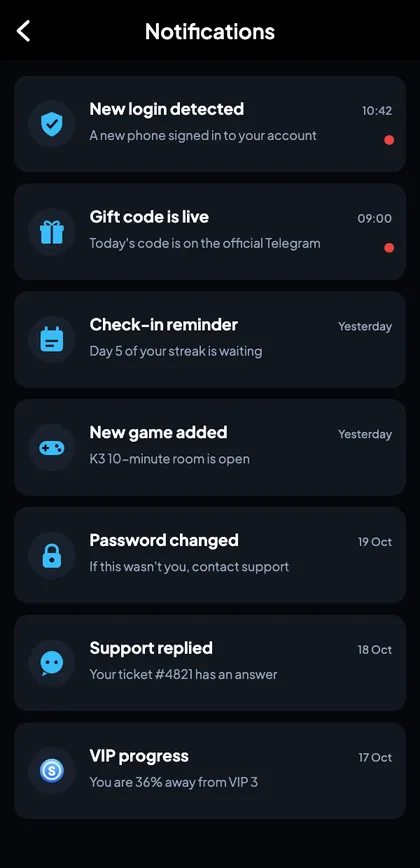
| Alert | Type | Advice |
|---|---|---|
| New login detected | Security | Keep on |
| Password changed | Security | Keep on |
| Support replied | Help | Keep on |
| Gift code live | Rewards | Optional |
| Check-in reminder | Rewards | Optional |
| Event starting | Promotions | Optional |
Acting on a login alert
If the alert was you – a new phone, a laptop – ignore it. If it wasn’t, change your password immediately; that ends every other session. Then check account security.
Not getting notifications?
Android
Settings → Apps → Sagar Club → Notifications → Allow. Also turn off battery optimisation if alerts arrive late.
iPhone
Web-app notifications need iOS 16.4+, opened from the home-screen icon, and allowed when asked.
In the app
Check the notification toggles in your profile.
Quiet hours
Use your phone’s Do Not Disturb schedule for nights. Alerts will be waiting in the message centre in the morning.
A login alert, in practice
You’re watching TV when your phone shows: ‘New login detected – a new device signed in to your account.’ You didn’t log in anywhere new. You open Sagar Club, go to Account → Change password, and set a new one. Every other session ends instantly. You check Login security – only your phone is listed. You message support with the time of the alert. Two minutes, and whoever had your password is locked out.
Tuning notifications on Android
- Settings → Apps → Sagar Club → Notifications.
- Keep ‘Security’ or ‘Account’ categories on.
- Turn promotional categories off if they distract you.
- Turn off battery optimisation if alerts arrive late.
Tuning notifications on iPhone
- Open Sagar Club from the home-screen icon.
- Allow notifications when asked (iOS 16.4+).
- Settings → Notifications → Sagar Club to change style or sounds.
- Use Focus modes to silence it at night.
Notifications and wellbeing
Notifications are designed to bring you back. Keep the security ones; be choosy about the rest. If gift-code or event alerts make you open the app more than you’d like, mute them – you can always check the official channel when it suits you.
Notification glossary
| Word | Meaning |
|---|---|
| Message centre | In-app list of all notifications |
| Push notification | Alert on your phone’s lock screen |
| Login alert | Notice of a new device signing in |
| Focus / DND | Phone modes that silence alerts |
Real questions about notifications
“I get alerts late.”
Battery optimisation delays them on Android; exclude Sagar Club.
“I get too many alerts.”
Turn off promotional categories; keep security ones.
“The alert says a new login, but it was me on my laptop.”
That’s expected – ignore it.
“Can I get alerts by email?”
Alerts arrive in the app; keep your bound email for login backup.
Notification mistakes and better habits
| Mistake | Better habit |
|---|---|
| Turning off all notifications | Keep security alerts on |
| Ignoring a login alert | Act on it – change your password |
| Allowing every promotional alert | Mute what you don’t need |
| Opening the app from every alert | Choose when to open it |
A recommended setup
| Alert | Setting |
|---|---|
| New login detected | On, with sound |
| Password changed | On |
| Support replied | On |
| Gift code live | Optional, silent |
| Check-in reminder | Optional, silent |
| Promotions | Off |
Open Sagar Club the right way
Use the official app or website – one Sagar Club account works for login on every device.
Frequently asked questions
Which notification matters most?
New login detected.
Can I mute promotions?
Yes – keep security alerts on and mute the rest.