

Your account page, explained
Sagar Club Profile & Settings
Everything on the Sagar Club account page, what it does and which settings to turn on first.
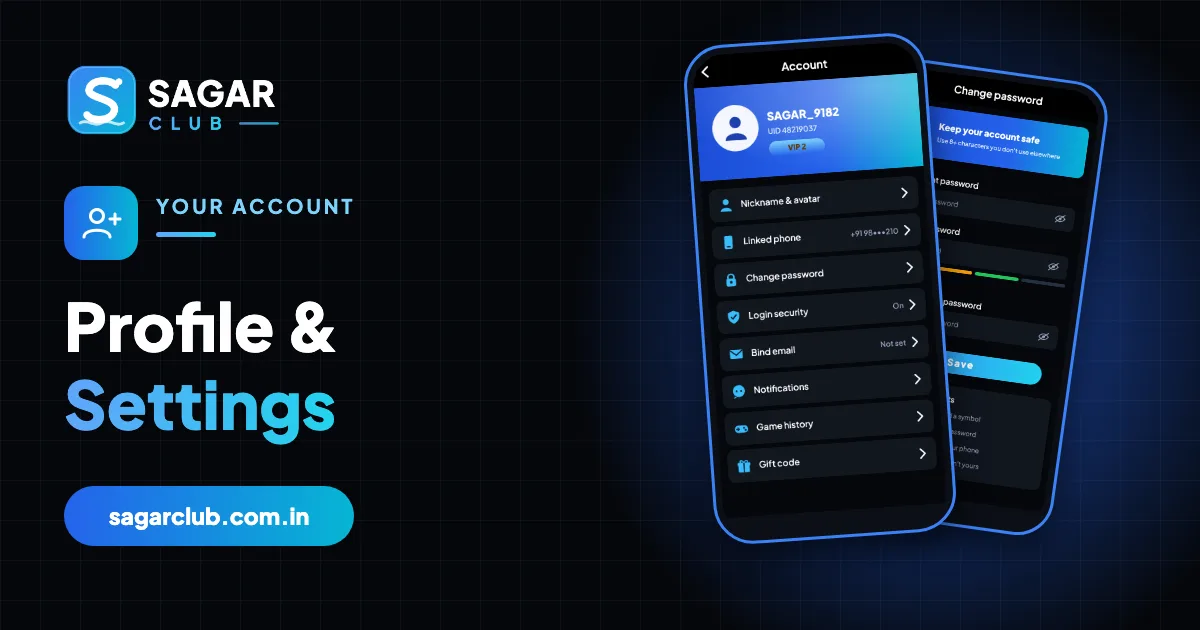
The Account page is where your Sagar Club identity lives: your nickname and avatar, your UID, the number and email that let you log in, and the security settings that protect it all. Most people open it once and never look again – which is a shame, because five minutes here makes your account far easier to recover and far harder to steal.
Here’s every row, what it does, and a recommended setup order.
Contents
- The Account page, row by row
- Recommended setup order
- Nickname and avatar
- Your UID
- Linked phone
- Binding an email
- Login security
- Notifications
- Game history
- Privacy settings to think about
- Logging out
- Five minutes that make recovery easy
- What a good profile looks like
- Reviewing your profile every month
- Language and display
- Screenshots and privacy
- Deleting your account
- FAQs
The Account page, row by row
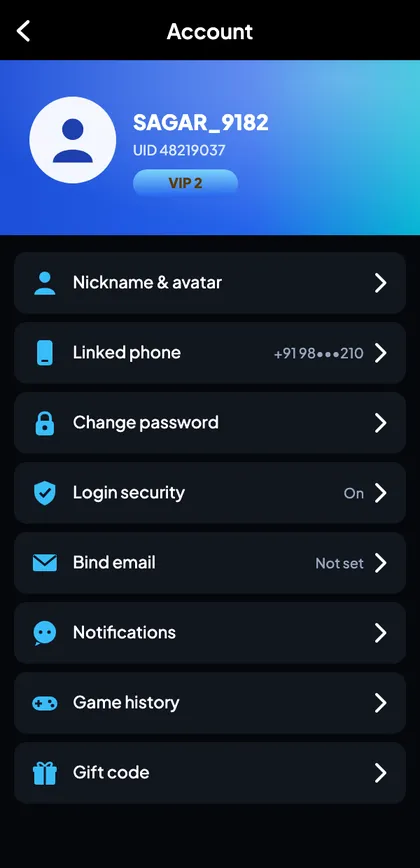
| Row | What it does |
|---|---|
| Nickname & avatar | How other players see you |
| UID | Permanent account number – support uses it |
| VIP badge | Your current level |
| Linked phone | Your login number |
| Change password | Set a new password |
| Login security | Devices and alerts |
| Bind email | Second way to log in |
| Notifications | What alerts you get |
| Game history | Your past rounds |
| Gift code | Redeem codes |
Recommended setup order
- Write down your UID. You’ll need it for any support request.
- Bind an email. A lifeline if you lose your SIM.
- Turn on login alerts. Know when a new device signs in.
- Change your nickname. Something that isn’t your real name or number.
- Choose an avatar. Avoid personal photos.
- Review notifications. Keep security alerts on, mute what you don’t need.
Nickname and avatar
New accounts get a default nickname. Change it to something you like that doesn’t reveal who you are – not your full name, phone number or city. The same goes for the avatar: pick one of the built-in images rather than a selfie. Screenshots get shared, and your profile is what’s in them.
Your UID
The UID is a number assigned when you register. It never changes, even if your nickname or phone number does. It’s the fastest way for support to find you. It isn’t a secret like a password, but there’s no reason to post it publicly next to your phone number.
Linked phone
Your login ID and recovery channel. Changing it needs codes sent to both the old and new numbers – see new phone number.
Binding an email
- Tap Bind email.
- Enter an address you check regularly.
- Enter the verification code sent to that email.
- Done – the Email Login tab now works for you.
Use an email account with its own strong password. If the email is compromised, so is this backup route.
Login security
This shows devices that have recently logged in and lets you switch on alerts. Glance at it once a month. If you see a device you don’t recognise, change your password – that ends every other session immediately.
Notifications
Keep the security alerts (new login, password changed) on. Gift-code, check-in and event reminders are optional. Details: Sagar Club notifications.
Game history
Your own rounds, filterable by game and date. Useful for checking a round you played, quoting a period number to support, and – just as important – seeing how much time you’re spending. If the list surprises you, read responsible play.
Privacy settings to think about
- Nickname that isn’t your name.
- No personal photo as avatar.
- Crop UID and number from screenshots you share.
- Log out of shared devices from the app’s menu.
Logging out
At the bottom of the Account page is Log out. Use it on any device that isn’t yours. On your own phone you can stay logged in – but if you ever lend the phone, log out first.
Five minutes that make recovery easy
Most of the pain people experience with Sagar Club accounts – lost SIMs, forgotten passwords, mysterious logouts – is far easier to solve with a properly set-up profile. A bound email gives you a second way in. Login alerts tell you the moment something unusual happens. A noted UID lets support find you in seconds. None of these take more than a minute, and together they turn a crisis into a minor errand.
What a good profile looks like
| Setting | Recommended |
|---|---|
| Nickname | Something personal to you but not identifying |
| Avatar | Built-in image |
| UID | Written down somewhere safe |
| Linked phone | A number you’ll keep |
| Bound and verified | |
| Login alerts | On |
| Password | Unique passphrase, saved in a manager |
Reviewing your profile every month
- Open Account and check the nickname and avatar are still what you want.
- Open Login security – any unfamiliar devices?
- Check the bound email still works (can you receive mail there?).
- Confirm the linked phone is your current number.
- Glance at Game history – is your playing time where you want it?
Language and display
Depending on your version, the menu may offer language and display options. The app also follows your phone’s font size – if text is too small, increase it in your phone’s settings rather than zooming.
Screenshots and privacy
When you share a screenshot – for example to show a friend a screen or to send to support – check what’s in it. The Account page shows your nickname, UID and sometimes a partly hidden phone number. Crop or blur anything you wouldn’t want strangers to see before posting it anywhere public.
Deleting your account
There isn’t a delete button on the profile; deletion is requested through customer support so they can confirm it’s really you. If you only want a break, uninstalling the app and muting notifications is enough – your account will wait. See responsible play.
Open Sagar Club the right way
Use the official app or website – one Sagar Club account works for login on every device.
Frequently asked questions
Where is my Sagar Club UID?
At the top of the Account page.
Can I change my nickname?
Yes, from Nickname & avatar.
Why bind an email?
It’s a backup login if your SIM is lost.
Can other players see my number?
No – they see your nickname.
How do I see my past rounds?
Account → Game history.
Can I hide my UID from other players?
Other players usually see your nickname; keep the UID out of public screenshots.
How do I delete my account?
Through customer support.