

Profile → Change password
Sagar Club Change Password
Already logged in? Changing your Sagar Club password takes under a minute – and it’s the quickest way to lock out anyone who shouldn’t be there.
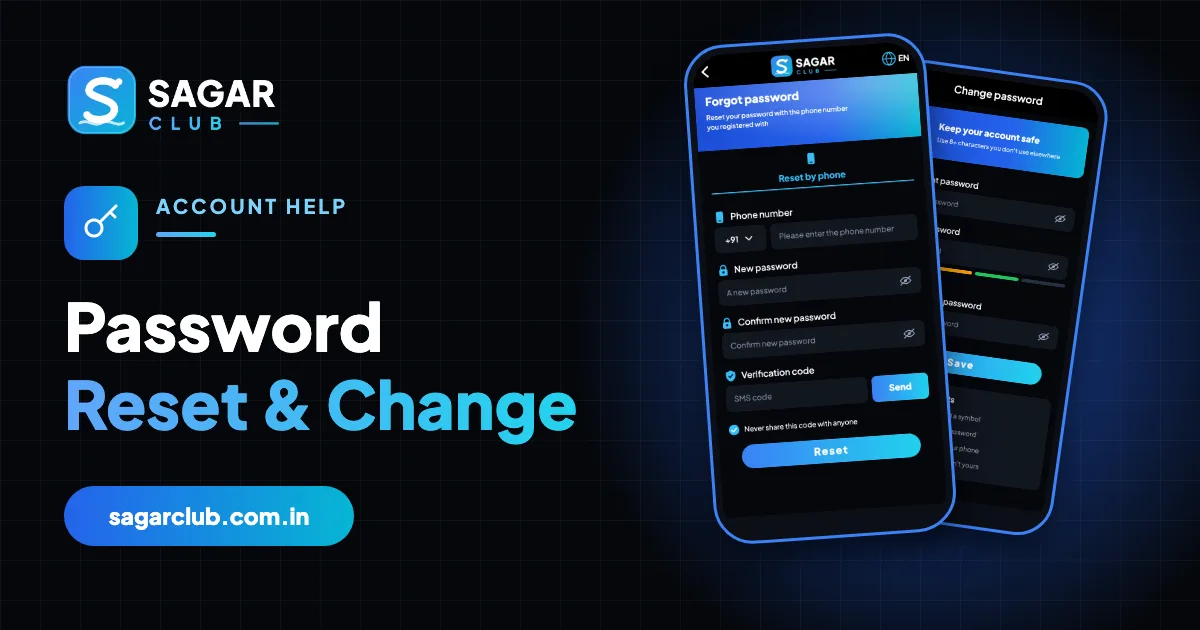
Changing your password is different from resetting it. You do it from inside the app, while logged in, using your current password – no SMS needed. It’s the right move when you simply want a stronger password, when someone else may have seen yours, or when you get a login alert you don’t recognise.
Here’s how to do it, what makes a good replacement, and what happens to your other devices afterwards. Forgot the current one? Use forgot password.
Contents
- Change your password in the app
- When you should change it
- What makes a strong replacement
- What happens to your other devices
- Errors when changing
- After changing
- Password managers, briefly
- How often should you change it?
- A password change, walked through
- Choosing a password you won’t forget
- Password do’s and don’ts
- Changing your password on a laptop
- Family and shared accounts
- What changing your password doesn’t do
- If you can’t change it
- FAQs
Change your password in the app
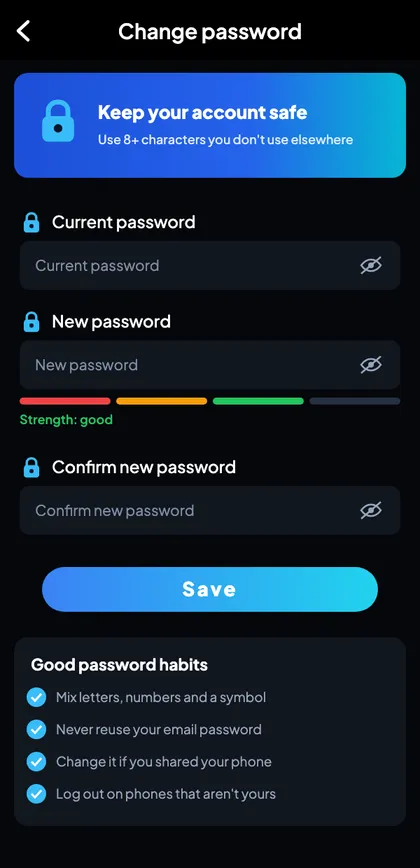
- Log in and open Account.
- Tap Change password.
- Enter your current password.
- Enter a new password – watch the strength bar.
- Confirm the new password.
- Tap Save.
You’ll usually stay logged in on the device you used; other devices will need the new password.
When you should change it
| Situation | Urgency |
|---|---|
| You got a login alert you don’t recognise | Now |
| You typed your password on a link you’re unsure about | Now |
| Someone saw you type it | Today |
| You logged in on a shared or public computer | Today |
| You used the same password elsewhere | Today |
| It’s been a few months | When convenient |
What makes a strong replacement
Length beats complexity. A long passphrase of unrelated words is harder to crack than a short jumble of symbols – and much easier to remember. Avoid patterns (Password1, Password2), personal details (names, dates, phone numbers) and anything to do with Sagar Club itself.
| Example | Strength |
|---|---|
| Sagar@123 | Weak |
| 9876543210 | Weak |
| MyName1990 | Weak |
| lantern-coconut-bridge-52 | Strong |
What happens to your other devices
Changing your password ends every other session. Your other phone, tablet or browser will show the login screen next time it opens. That’s the point – it means anyone using your old password is out. Log in again on the devices you actually use.
Errors when changing
Current password incorrect
Type it carefully with the eye icon. If you really don’t know it, log out and use forgot password.
New passwords don’t match
Retype both by hand.
Password too short / weak
Make it longer.
Same as old password
Choose something genuinely new.
After changing
- Save it in your password manager.
- Log in on your other devices.
- Check the login security list in your profile.
- If you changed it because of a suspicious alert, tell support.
Password managers, briefly
Google Password Manager (Android/Chrome) and iCloud Keychain (iPhone/Safari) are built in and free. They remember a different strong password for every app and fill it in for you, which removes the two biggest risks: reuse and typos. If you use one, let it generate the new password when you change it.
How often should you change it?
Security experts no longer recommend changing passwords on a fixed schedule if the password is strong and unique – frequent changes push people towards weak patterns. Change it when there’s a reason (any item in the table above), and otherwise keep a strong one.
A password change, walked through
You get a notification: ‘New login detected – a new phone signed in to your account.’ It wasn’t you. You don’t panic; you open Sagar Club on your own phone, go to Account → Change password, type your current password, then a new passphrase twice, and tap Save. Instantly, every other session ends – including whoever just logged in. You open Login security to confirm only your phone is listed, then message support with the time of the alert. Five minutes, problem contained.
That’s the real value of changing a password: it’s the fastest lever you have when something looks wrong.
Choosing a password you won’t forget
The most common reason people end up on the forgot-password screen is that they changed their password in a hurry and didn’t save it. When you change it deliberately, take ten seconds to make it memorable. A passphrase built from a picture in your head – a green umbrella in the desert – is far easier to recall than a random string, and far harder to guess than a name and a birthday.
- Picture three unrelated things.
- Join them with hyphens.
- Add a number that means nothing to anyone else.
- Save it in your password manager immediately.
Password do’s and don’ts
Do
- Make it 12+ characters.
- Use a passphrase.
- Keep it unique to Sagar Club.
- Save it in a password manager.
- Change it when there’s a reason.
Don’t
- Use your name, number or birthday.
- Reuse your email or UPI password.
- Write it on the back of your phone.
- Tell it to anyone – including ‘support’.
- Change it on a link someone sent you.
Changing your password on a laptop
The steps are the same in a browser: log in, open Account, choose Change password. If you’re on a shared computer, don’t let the browser save the new password, and log out afterwards.
Family and shared accounts
If you’ve ever shared your password with a family member, change it now and ask them to register their own account. Shared passwords spread – to other phones, to notes apps, to friends – and you lose control of who can log in.
What changing your password doesn’t do
- It doesn’t change your number, UID or nickname.
- It doesn’t affect your history, VIP level or check-in streak.
- It doesn’t log you out of the device you used to change it (usually).
- It doesn’t change your bound email’s password – that’s separate.
If you can’t change it
If the app won’t accept your current password even though you’re logged in, you may have changed it on another device, or a password manager may have filled an old one at login. Log out, use forgot password to set a fresh one, and save it properly this time.
Open Sagar Club the right way
Use the official app or website – one Sagar Club account works for login on every device.
Frequently asked questions
Do I need an OTP to change my password?
No – just your current password.
Will I be logged out?
Other devices will be; usually not the one you’re using.
Can I reuse an old password?
Better not.
I don’t know my current password.
Log out and use forgot password.
How long does a password change take?
Under a minute.
Does changing my password change my email password?
No – they’re separate.