

New SIM, same account
Sagar Club New Phone Number
Changed your SIM? Your Sagar Club account isn’t lost. Here’s how to move it to a new number – with or without the old one.
Your mobile number does three jobs on Sagar Club: it’s your login ID, it’s where password-reset codes go, and it’s part of how support confirms you’re you. When the number changes, those jobs have to move with it. The process is quick if you still have the old SIM and a little slower if you don’t.
First, a distinction that saves confusion: a new phone with the same number needs nothing special – just log in. A new number is what this page is about.
Contents
- New phone or new number?
- If you still have the old number
- If you’ve lost the old number
- If you bound an email
- Recycled numbers
- After the change
- Common questions during a change
- A number change, walked through
- Planning a number change
- Talking to support about a lost number
- Why this matters for security
- Number change checklist
- FAQs
New phone or new number?
| Situation | What to do |
|---|---|
| New handset, same SIM/number | Just log in – nothing to change |
| Same number moved to a new operator (port) | Nothing to change |
| New SIM number, old SIM still works | Change it yourself |
| Old SIM lost, stolen or deactivated | Get a replacement SIM, or contact support |
If you still have the old number
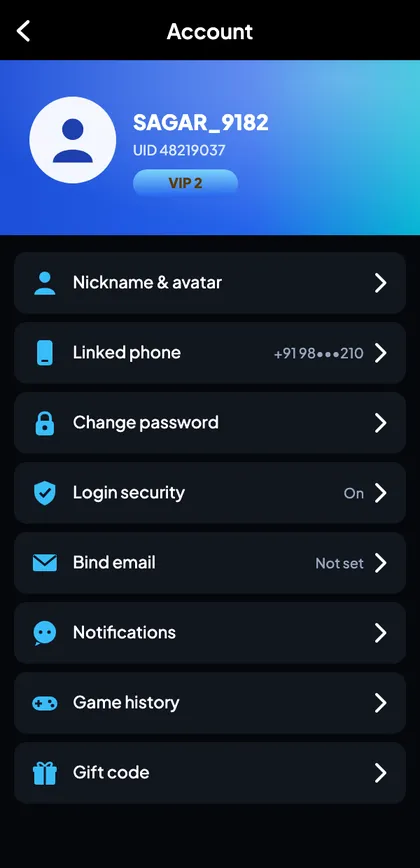
- Log in and open Account.
- Tap Linked phone.
- Confirm with the code sent to your old number.
- Enter the new number.
- Confirm with the code sent to the new number.
- Log out and log back in with the new number to test.
Do this before you stop using the old SIM – once it’s gone, the first code can’t reach you.
If you’ve lost the old number
Your quickest route is often your mobile operator, not Sagar Club. Indian operators can issue a replacement SIM with the same number after ID verification, usually the same day. With the number back, you can log in and reset normally.
If the number can’t be recovered – for example it was disconnected long ago – contact customer support:
- Choose ‘Change phone number’ in customer service.
- Give your UID, nickname and the old number.
- Answer the verification questions (recent activity, devices).
- Give the new number and confirm the code sent to it.
- Log in with the new number.
If you bound an email
A bound email can save the day. Use Email Login to get into the account, then change the linked phone from your profile – support may still need to confirm the change, but it’s much faster when you can log in.
Recycled numbers
Operators reassign disconnected numbers to new customers after a while. If your old number was recycled, its new owner could in theory request a reset code. That’s another reason to move your account to a new number as soon as you change SIMs – and to bind an email.
If you’ve received a new SIM and discover an old Sagar Club account already on it that isn’t yours, don’t use it – contact support so it can be sorted out.
After the change
- Log in with the new number on every device.
- Change your password – good practice after any account change.
- Check the login security list.
- Update the number in your password manager entry.
Common questions during a change
New number ‘already registered’
Someone (maybe you) has an account on it. Recover that one or contact support.
Code to old number never arrives
The old SIM is inactive – go the support route.
Support asks for documents
Verification is usually done through account details. Be cautious of anyone outside the app asking for ID.
A number change, walked through
You’ve switched operators and got a brand-new number, but the old SIM still works for another week. Perfect timing. You log in to Sagar Club, open Account → Linked phone, and tap Change. A code arrives on the old SIM; you enter it. You type the new number; a second code arrives on the new SIM; you enter that too. The screen confirms the change. You log out and log back in with the new number to make sure it works. Finally you update the saved login in your password manager. Ten minutes, all done before the old SIM expires.
If you’d waited until after the old SIM was deactivated, that first code couldn’t have reached you, and you’d have needed support. That’s the whole lesson: change numbers while both SIMs work.
Planning a number change
- Bind an email first, as a fallback.
- Insert both SIMs if your phone supports dual SIM.
- Do the change in the app while both are active.
- Test the new login.
- Only then let the old SIM go.
Talking to support about a lost number
If you’ve already lost the old SIM, support will need to be sure it’s really you before moving the account – otherwise anyone could claim your account. Expect questions about your UID, nickname, roughly when you registered, your recent activity and devices. The more you can answer, the faster it goes. Be patient: these checks protect you.
Support will verify you through account details inside the app. Be very cautious of anyone outside the app asking for ID documents, OTPs or passwords ‘to change your number’.
Why this matters for security
Your number receives password-reset codes. If an old number you no longer control is still linked to your account, whoever gets that number next could, in principle, request a reset. Moving your account promptly – and binding an email – closes that gap.
Number change checklist
- Email bound.
- Both SIMs active during the change.
- Codes entered on both numbers.
- Test login with the new number.
- Password manager updated.
- Old SIM disposed of safely.
Open Sagar Club the right way
Use the official app or website – one Sagar Club account works for login on every device.
Frequently asked questions
Do I need to do anything if I just bought a new phone?
No – log in with the same number and password.
Can two accounts share a number?
No.
How long does a support number change take?
Usually within a day or two after verification.
Will I lose my history or VIP level?
No – they stay with the account.
Can I change my number without the old SIM?
Yes, through support, after verification.
Does changing my number change my UID?
No – the UID is permanent.