

Switching phones, step by step
Sagar Club Login on a New Phone
New phone, same Sagar Club account. Here’s how to move over cleanly – and avoid the mistakes that lock people out.
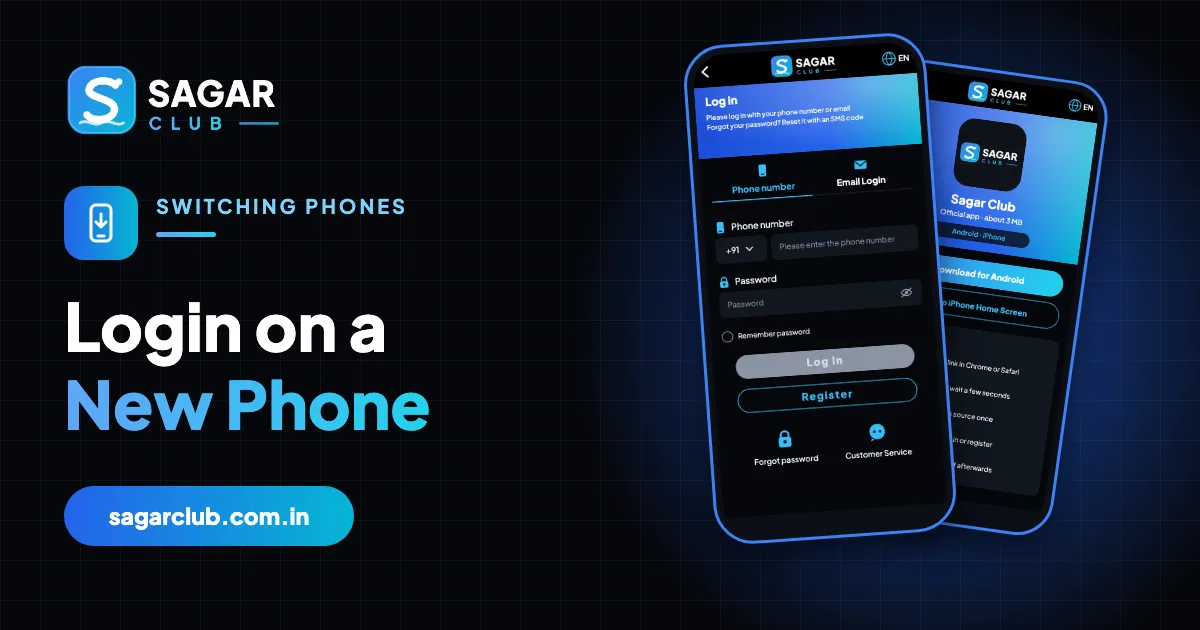
Switching phones is the moment many people discover they never actually knew their Sagar Club password – the old phone remembered it for them. It’s also when people install the app from the first link they find. This walkthrough avoids both.
The short version: your account lives on Sagar Club’s servers, not on your phone. Install the official app on the new phone, log in with your number and password, and sign out of the old one.
Contents
Before you switch
- Make sure you know your password – check it once on the old phone, or reset it now while everything works.
- Bind an email if you haven’t – it’s a backup login.
- Note your UID from the Account page.
- Keep your SIM: if the number stays the same, nothing about your account changes.
On the new phone
- Insert your SIM (or set up eSIM).
- Open the official Sagar Club site and install the app – app download. On iPhone, add it from Safari.
- Open the app and tap Log in.
- Enter your 10-digit number and password.
- Allow notifications so login alerts and codes reach you.
- Check your nickname and UID match.
On the old phone
- Open Sagar Club and log out (Account → Log out).
- Uninstall the app.
- If you’re selling or giving away the phone, factory-reset it.
Problems you might hit
‘Incorrect password’
The old phone was remembering it. Use forgot password.
‘Session expired’ on the old phone
Expected – the new login took over.
No SMS for reset
Make sure the SIM is in the new phone and has signal – OTP fixes.
New number too
See new phone number.
Why you don’t need to ‘transfer’ anything
Your history, VIP level, check-in streak and invite list are tied to your account, not the device. Logging in on the new phone brings everything with it instantly. Copying APK files between phones isn’t necessary – and can spread an outdated or fake version.
A real example
Anil bought a new phone, moved his SIM and opened the Sagar Club site from a WhatsApp forward to reinstall. The page looked right but asked for an OTP to ‘verify the new device’. He stopped, opened the official site from the bookmark on his laptop instead, downloaded the app properly and logged in – no OTP needed. The forwarded page was a fake trying to catch exactly this moment.
The safe sequence, once more
- Official site only.
- Install, log in with number and password.
- No OTP should be needed for login.
- Log out of the old phone or change your password.
Checklist for switching phones
| Stage | To do |
|---|---|
| Before | Know your password; bind email; note UID |
| New phone | Install from official site; log in; allow notifications |
| Old phone | Log out; uninstall; reset if selling |
| After | Check login security; update password manager |
Switching from Android to iPhone (or back)
Moving between platforms changes how the app is installed, not your account. On iPhone, add Sagar Club from Safari (steps); on Android, install the APK from the official site (steps). Log in with the same number and password.
If you sold or lost the old phone
If the old phone is gone and you can’t log out on it, change your password from the new phone – that ends every other session, including the old phone’s.
Real questions
“The new phone says ‘account does not exist’.”
Check you typed the same number you registered with – no 0, no +91.
“Do I need my old phone to log in?”
No – only your number, password and (for resets) your SIM.
Open Sagar Club the right way
Use the official app or website – one Sagar Club account works for login on every device.
Frequently asked questions
Will I lose my history on a new phone?
No – it’s stored with your account.
Can I use both phones?
Yes, but a new login may end the older session.