

Every tab and button
Sagar Club Lobby Guide
The Sagar Club lobby is the first screen after login. Here’s every part of it – and where to find each game and feature.
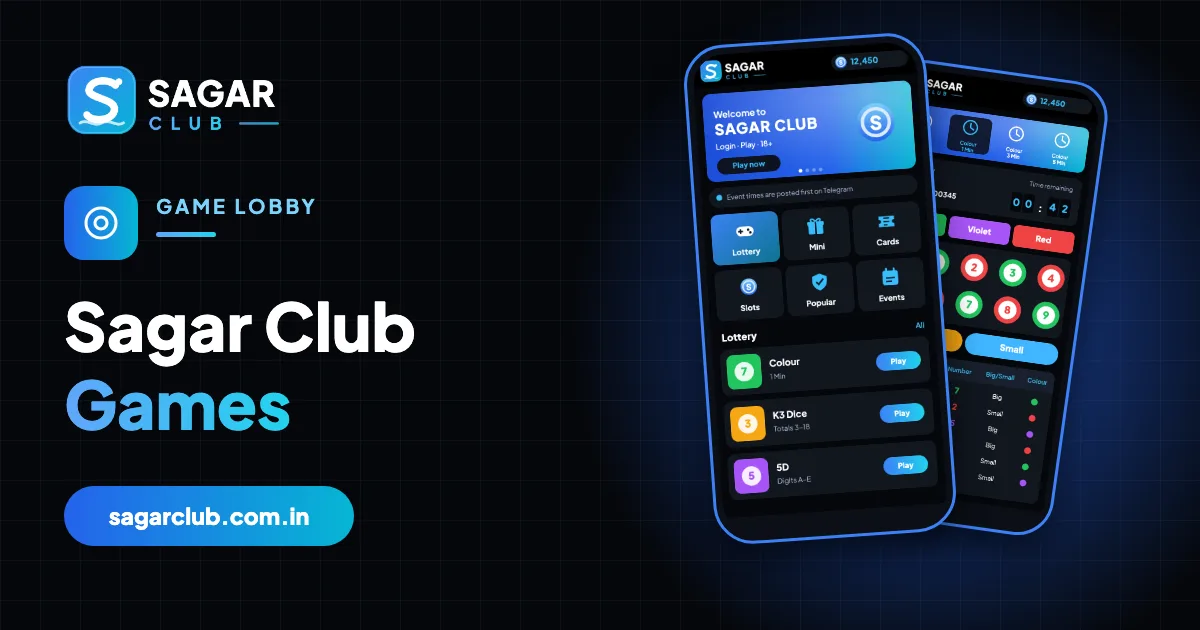


The lobby is the Sagar Club home screen: the place you land after logging in and the hub for every game and feature. It looks busy, but it’s built from just a few parts, and once you know them you’ll find anything in two taps.
We’ll go top to bottom: the header, the banner and notice line, the six category tabs, the room list and the bottom navigation.
Contents
The lobby, top to bottom
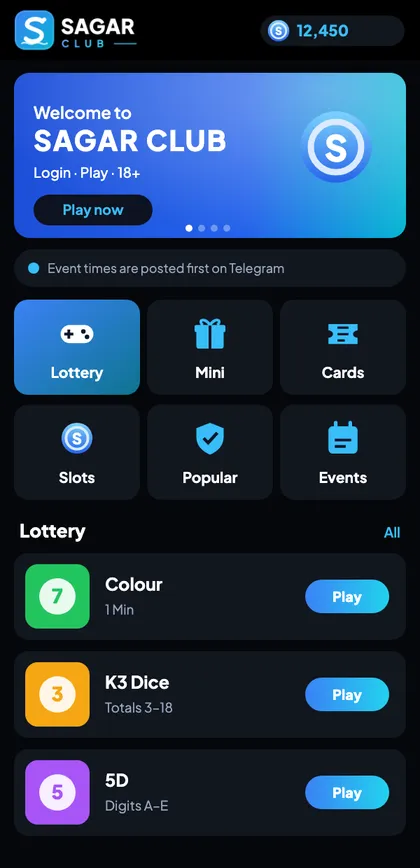
| Part | What it does |
|---|---|
| Header | Logo, your nickname/UID, menu |
| Banner | Rotating announcements |
| Notice line | Event and maintenance times |
| Category tabs | Lottery, Mini, Cards, Slots, Popular, Events |
| Room list | Rooms in the selected tab |
| Bottom bar | Home, activity, promotions, account |
Header
Your nickname and UID sit at the top so you always know which account you’re in – useful if you share a device or have just logged in. The menu icon opens settings, language and customer service.
Banner and notice line
The banner rotates announcements – new games, events, app updates. The notice line beneath it scrolls short messages such as maintenance windows and event times. Important announcements also appear on the official Telegram channel.
The six tabs
| Tab | Inside | Guide |
|---|---|---|
| Lottery | WinGo, K3, 5D, TRX WinGo | WinGo guide |
| Mini | Quick games, fishing | Mini games |
| Cards | Card tables, roulette | Card games |
| Slots | Reel games | Slots |
| Popular | Most-played this week | All games |
| Events | Check-in, gift code, limited-time pages | Events |
The room list
Each tab shows a list of rooms. Lottery rooms display their round length (30 s, 1, 3, 5 or 10 minutes) and a Play button. Slot and card rooms show the game’s artwork. Tap a room to open it; use the back arrow to return to the lobby.
Bottom navigation
The bar along the bottom moves between the main areas of the app – the lobby, activity/events, promotions and your account. The Account section holds your profile and settings, gift code box, VIP page and customer service.
Finding things quickly
| I want to… | Go to |
|---|---|
| Change password | Account → Change password |
| Redeem a gift code | Account → Gift code |
| Daily check-in | Events tab or banner |
| Your invite code | Invite / promotion page |
| Past rounds | Account → Game history |
| Customer service | Account → Customer service |
Lobby tips
- Lottery is the lightest tab on data and battery.
- Popular changes weekly – it’s a good place to discover rooms.
- Read the notice line before playing – maintenance may be scheduled.
- If the lobby looks empty, pull down to refresh or check your connection.
Moving around without getting lost
A common frustration is ending up deep inside a game and not knowing how to get back. The rule is simple: the back arrow at the top-left always takes you one step up – from a room to its tab, from a tab to the lobby. The bottom bar takes you between the main sections. If you’re ever unsure, tap the Home icon in the bottom bar.
What the lobby tells you before you play
- The notice line often lists maintenance windows – if one is due, don’t start a long session.
- The banner shows new games or events – read before joining.
- Room cards show their timer length – choose a slow one when learning.
- Your UID at the top confirms which account you’re in.
Lobby on different devices
| Device | Notes |
|---|---|
| Android app | Fastest; tabs load instantly after the first time |
| iPhone web app | Same layout; full-screen from the home-screen icon |
| Laptop browser | Phone-shaped column; zoom with Ctrl + |
| Old phones | Lottery tab is the lightest |
When the lobby won’t load
Empty tabs
Pull down to refresh or switch network.
Images missing
Weak connection – they’ll fill in as they load.
Stuck on a spinner
Close and reopen the app; update if needed.
Different layout than usual
An update changed it – the tabs stay the same.
Personalising your lobby
The lobby itself doesn’t need configuring, but a few settings change how it feels: your phone’s font size, dark mode (the app is already dark), and notifications for events. Keep the experience calm – mute promotional notifications you don’t need.
Open Sagar Club the right way
Use the official app or website – one Sagar Club account works for login on every device.
Frequently asked questions
Where are the lottery games?
In the Lottery tab.
Where do I redeem gift codes?
Account → Gift code.
What does the Popular tab show?
The most-played rooms recently.
Why does my lobby look different?
Banners and Popular change over time; the layout stays the same.