
Android · iPhone · about 3 MB
Sagar Club App Download
The Sagar Club app is a small, free download that keeps you logged in and opens the lobby in one tap. Here’s how to install it safely on any phone.
You don’t strictly need the Sagar Club app – the website works in any browser – but most regular players install it. It remembers your login, loads faster, sends login alerts and gift-code reminders, and saves you typing the address every time (which is also how people end up on fake sites).
Because the Android version isn’t on the Play Store and the iPhone version comes from Safari, installing it is slightly different from a normal app. This guide covers both, plus permissions, updates, storage and every install error we’ve seen.
Contents
- Sagar Club app at a glance
- Download the Sagar Club app on Android
- Install Sagar Club on iPhone or iPad
- App, website or laptop: which should you use?
- Permissions the app asks for
- Storage and data use
- Keeping the app updated
- Install errors and fixes
- Uninstalling (and what it doesn’t do)
- Real app vs fake app
- App download checklist
- Real install situations, solved
- Low-end and older phones
- Notifications: what you’ll get
- Moving the app to a new phone
- Family phones and shared tablets
- How the app protects you
- Understanding Android’s install settings
- How Android decides whether to trust an app
- A careful install, walked through slowly
- Keeping a phone healthy with apps from outside the Play Store
- Why the iPhone version is a web app
- When to reinstall – and when not to
- A short history of app scams – and how to avoid them
- Checking the app you already have
- Using Sagar Club with mobile data limits
- Accessibility in the app
- Battery-saving tips
- Installing for an older relative
- Sagar Club app: questions people ask us
- Update notes worth knowing
- Installing on a work phone
- The two-minute version
- FAQs
Sagar Club app at a glance
| Price | Free |
| Size | About 3 MB to install; games load extra content as you play |
| Android | APK file from the official website |
| iPhone / iPad | Safari → Add to Home Screen |
| Laptop / PC | No app – use the website in a browser |
| Login | Same account and password as the website |
| Updates | Prompted in the app (Android); automatic (iPhone) |
| Play Store / App Store | Not listed |

Faster
Lobby opens in one tap

Stays logged in
No typing every time

Alerts
Logins & gift codes

Safer
No mistyped addresses
Download the Sagar Club app on Android
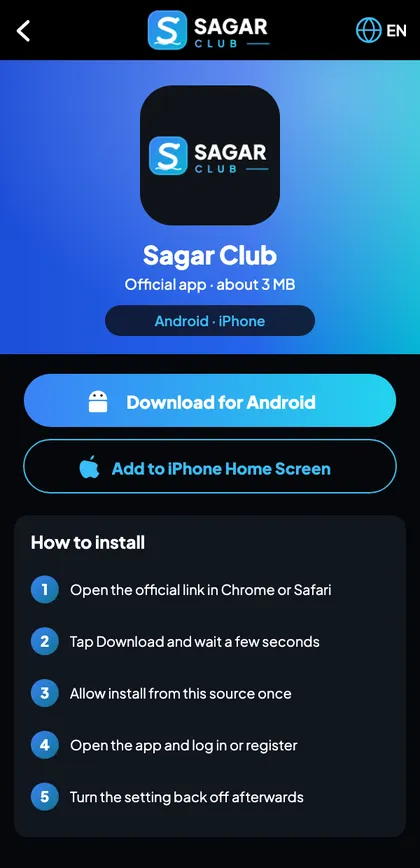
- Open the official Sagar Club website in Chrome.
- Tap Download for Android. The file is about 3 MB.
- Chrome may warn that the file ‘can harm your device’ – this warning appears for every app outside the Play Store. Tap Download anyway only if you’re on the official site.
- Open the downloaded file from the notification or the Downloads folder.
- If Android asks, allow Install unknown apps for Chrome – just this once.
- Tap Install, then Open, and log in or register.
- Go to Settings → Apps → Special app access → Install unknown apps → Chrome and switch it off again.
Why the last step matters
Leaving ‘install unknown apps’ switched on means any website you visit in Chrome can try to push an install. Turning it off after you’ve installed Sagar Club closes that door. It takes ten seconds and costs nothing.
Phone-brand notes
| Brand | What to expect |
|---|---|
| Samsung | May show ‘Blocked by Play Protect’ – tap More details → Install anyway |
| Xiaomi / Redmi / POCO | Security scan may run first; allow it to finish |
| Vivo / OPPO / Realme | May ask for your lock-screen PIN to confirm install |
| OnePlus / Motorola | Standard Android prompts |
For a deeper look at the file itself – size, name, permissions and how to spot a fake – read the Sagar Club APK guide.
Install Sagar Club on iPhone or iPad
There’s no App Store version. Instead, Sagar Club runs as a home-screen web app: it opens full-screen with its own icon and remembers your login, but nothing is downloaded from the App Store and no profile is installed.
- Open Safari – not Chrome – and go to the official Sagar Club website.
- Tap the Share button (the square with an arrow).
- Scroll down and tap Add to Home Screen.
- Keep the name ‘Sagar Club’ and tap Add.
- Open the new icon and log in.
Never install a ‘configuration profile’ or ‘enterprise certificate’ to get any app. It gives a stranger deep control over your iPhone. The real Sagar Club doesn’t need one.
iPhone quirks, notifications and Private Browsing problems are covered on Sagar Club on iPhone.
App, website or laptop: which should you use?
| App | Mobile website | Laptop browser | |
|---|---|---|---|
| Speed | Fastest | Depends on browser | Good |
| Stays logged in | Yes | If cookies kept | If you allow it |
| Notifications | Yes | No | No |
| Storage | About 3 MB+ | None | None |
| Best for | Your own phone | Borrowed phone (private tab) | Shared or office PC (private window) |
If you mostly use Sagar Club on your own phone, install the app. On anyone else’s device, use the website in a private tab and log out afterwards. On a computer, see Sagar Club login on PC.
Permissions the app asks for
| Permission | Why | Advice |
|---|---|---|
| Internet | Needed – to load the lobby and games | Allow |
| Notifications | Login alerts, gift codes, check-in reminders | Allow (recommended) |
| Storage / Files | Not needed on modern Android | Deny if asked |
| SMS, Contacts, Call logs | Never needed | Deny – and uninstall if insisted |
| Accessibility | Never needed | Deny – this is a red flag |
If an app calling itself Sagar Club asks for SMS or Accessibility access, it is not the real app. Those permissions let an app read your OTPs and tap buttons for you.
Storage and data use
The installer is about 3 MB, but games download their graphics and sounds the first time you open them. Expect the app to grow – typically well under 100 MB even if you try many games. Lottery games (WinGo, K3, 5D) use very little data; slots, live games and fishing use more because of animation and video. On a limited data plan, play the heavier games on Wi-Fi.
To free space: Settings → Apps → Sagar Club → Storage → Clear cache. Don’t tap Clear data unless you’re happy to log in again.
Keeping the app updated
Updates bring new rooms, fixes and security improvements – and older versions can eventually stop connecting. On Android the app shows an update prompt; tap it, or download the latest file from the official site and install it over the old one. On iPhone the home-screen app always loads the latest version.
- Tap Update when the prompt appears.
- If no prompt, download the newest file from the official site.
- Install over the old version (no need to uninstall first).
- Open and confirm you’re still logged in.
Only ever update from the in-app prompt or the official website. ‘Update’ links in forwards and video descriptions are the most common way fake APKs spread.
Install errors and fixes
| Problem | Cause | Fix |
|---|---|---|
| App not installed | An older or different copy is on the phone | Uninstall the old one, then install |
| Blocked by Play Protect | Normal for apps outside the Play Store | More details → Install anyway (official file only) |
| There was a problem parsing the package | File didn’t finish downloading | Delete and download again on Wi-Fi |
| Download stuck at 0% | Low storage or weak signal | Free 200 MB, try Wi-Fi |
| App opens to a white screen | Weak connection or very old version | Switch network; update |
| Icon missing on iPhone | Added from Chrome or Private mode | Repeat in normal Safari |
| Two Sagar Club icons | Old copy or a fake | Keep the official one; uninstall the other; change password |
Uninstalling (and what it doesn’t do)
Uninstalling removes the app from your phone. It does not delete your Sagar Club account – you can reinstall later and log in with the same number and password. If you want to take a break, uninstalling and muting notifications is a simple first step (responsible play has more ideas).
Real app vs fake app
| Check | Real | Fake |
|---|---|---|
| Where it came from | Official website / official Telegram post | WhatsApp forward, video link, ‘mod’ site |
| Name | Sagar Club | Sagar Club Pro / Mod / Hack / VIP |
| Size | About 3 MB | Often much bigger |
| Permissions | Internet, notifications | SMS, contacts, accessibility |
| Price | Free | Asks for payment or ‘activation’ |
If you installed something suspicious: uninstall it, change your password from the real app, and check login alerts. The official link guide explains how fakes spread.
App download checklist
- Downloaded from the official Sagar Club website.
- File about 3 MB, named Sagar Club.
- ‘Install unknown apps’ switched back off.
- Only one Sagar Club icon on the phone.
- Logged in, email bound, alerts on.
- On iPhone: added from Safari, no profile installed.
Real install situations, solved
“My phone says the file might be harmful”
Every Android phone warns about apps from outside the Play Store – it’s a generic message, not a judgement on Sagar Club. What matters is the source. If you tapped Download on the official site, continue. If the file came from a WhatsApp forward or a video description, delete it and download from the official site instead.
“I installed it but can’t find the icon”
Some launchers put new apps only in the app drawer. Swipe up to open all apps and search ‘Sagar’. Long-press the icon and drag it to your home screen.
“It installed, but opens to a blank screen”
The app needs a connection to load the lobby. Switch between Wi-Fi and mobile data, turn off data saver and any VPN, then reopen. If it persists, you may have an old file – download the latest from the official site.
“Install button is greyed out”
A screen-overlay app (chat heads, blue-light filters, screen recorders) is drawing over the install prompt. Close bubbles and filters, then try again.
“I have very little storage”
The app itself is about 3 MB, but Android needs some free space to install. Clear 200 MB – old videos and WhatsApp media are the usual culprits – and stick to lottery games, which load the least extra content.
Low-end and older phones
Sagar Club is light, but older phones with 2–3 GB of RAM can struggle with graphics-heavy games. These tweaks help:
- Close other apps before opening Sagar Club.
- Stay in the Lottery tab – WinGo, K3 and 5D are the lightest screens.
- Avoid live games and fishing on mobile data.
- Restart the phone once a day if it gets sluggish.
- Keep 1 GB of storage free – Android slows down when it’s full.
Notifications: what you’ll get
| Alert | Type | Advice |
|---|---|---|
| New login detected | Security | Keep on |
| Password changed | Security | Keep on |
| Gift code live | Rewards | Optional |
| Check-in reminder | Rewards | Optional |
| Support replied | Help | Keep on |
| Event starting | Promotions | Optional |
Fine-tune them in the app and in your phone’s settings. More in Sagar Club notifications.
Moving the app to a new phone
- On the new phone, download the app from the official site (don’t copy the APK across).
- Log in with your number and password.
- Turn on notifications.
- On the old phone, log out and uninstall – or factory reset it if you’re selling it.
Nothing needs to be transferred – your account lives on Sagar Club’s servers.
Family phones and shared tablets
If the app is on a phone others use, don’t tick ‘Remember password’, and log out after each session. Better still, use the website in a private tab on shared devices and keep the app only on your own phone. Sagar Club is 18+, so make sure younger family members can’t open it – use your phone’s app lock or a separate user profile.
How the app protects you
- Login alerts tell you when a new device signs in.
- Password resets need an SMS to your registered number.
- Changing your password ends other sessions.
- Using the installed app avoids typing addresses – the number-one way people land on fakes.
Understanding Android’s install settings
Android blocks apps from unknown sources by default and lets you allow them per app (Chrome, Files, etc.). Allowing it for Chrome only while you install Sagar Club – and switching it off again – is the safest pattern. You’ll find it at Settings → Apps → Special app access → Install unknown apps (the exact wording varies by brand).
How Android decides whether to trust an app
Android has two layers of protection that you’ll meet when installing Sagar Club. The first is the per-app permission to install unknown apps – Chrome must be allowed, once, to hand an installer to the system. The second is Play Protect, Google’s scanner, which checks apps from any source and may show a warning for apps it hasn’t seen widely. Neither is a verdict on Sagar Club specifically; both are general caution. The real protection is you choosing the source: the official website, not a forward.
A careful install, walked through slowly
You open the official Sagar Club site in Chrome on your Android phone and tap Download for Android. Chrome shows a warning that the file type can be harmful; you check the address bar, confirm it’s the official site, and tap Download anyway. A notification appears: the download is complete. You tap it; Android says Chrome isn’t allowed to install unknown apps; you tap Settings, switch the toggle on, and go back. You tap Install. Play Protect shows a short scan. Install completes; you tap Open and log in.
Then you finish the job: Settings → Apps → Special app access → Install unknown apps → Chrome → off. You delete the downloaded file from Downloads. You check your app drawer – one Sagar Club icon. You open the app, allow notifications, and turn on login alerts. Five minutes, done properly.
Keeping a phone healthy with apps from outside the Play Store
- Only allow ‘install unknown apps’ for the app you’re installing with, and switch it off afterwards.
- Delete installer files after you’ve used them.
- Review app permissions every few months (Settings → Privacy → Permission manager).
- Uninstall apps you no longer use.
- Keep Android and Chrome updated.
Why the iPhone version is a web app
Apple only allows apps outside the App Store through very limited routes. Rather than asking iPhone users to install profiles or certificates – which would be a real security risk – Sagar Club offers a web app. It’s the same website you’d open in Safari, saved to the home screen so it launches full-screen and remembers you. It updates automatically, takes almost no storage and can’t access anything on your phone beyond what Safari already allows. For iPhone users, that’s actually the safest arrangement possible.
When to reinstall – and when not to
Reinstalling fixes a narrow set of problems: a corrupted install, a very old version that won’t update, or a phone that’s been restored from backup. It doesn’t fix login errors, wrong passwords, OTP problems or account restrictions – those live on the server, not in the app. Before reinstalling, try updating, clearing the cache, and switching network. If you do reinstall, download fresh from the official site rather than reusing an old file.
A short history of app scams – and how to avoid them
Whenever an app becomes popular, three kinds of fakes appear. The first is the clone: an APK with the same name and icon that steals your login. The second is the ‘mod’ or ‘hack’ version promising unlimited rewards or predictions – it either doesn’t work or quietly installs adware. The third is the update scam: a message saying ‘your app is out of date, install this new version’ with a link to a fake file. All three rely on the same thing – you installing from somewhere other than the official site.
The defence is just as simple: install once from the official site, update only through the in-app prompt or the official site, and treat every forwarded link as suspicious. If you ever doubt the version you have, uninstall it, download fresh from the official site, and change your password.
Checking the app you already have
- Open Settings → Apps and find Sagar Club.
- Check there’s only one app with that name.
- Tap Permissions – it should have Internet and, if you allowed it, Notifications. Nothing like SMS, Contacts or Accessibility.
- Check storage – the app plus its data should be modest.
- If anything looks wrong, uninstall and reinstall from the official site.
Using Sagar Club with mobile data limits
If your plan has a daily data cap, the app is friendly to it as long as you choose games carefully. Lottery games refresh small amounts of data every round; a typical session uses very little. Slots download artwork the first time you open each one; live games stream video continuously. Open heavy games on Wi-Fi once so their artwork is cached, and keep mobile data for lottery rooms.
| What you open | Data use |
|---|---|
| Lottery rooms | Very low |
| Aviator | Low |
| Cards & roulette | Low–medium |
| Slots (first open) | Medium – then cached |
| Fishing | Medium–high |
| Live games | High – video stream |
Accessibility in the app
The Sagar Club app follows your phone’s font and display settings. If text is small, increase the system font size or display size. Colour-blind players can rely on numbers and labels as well as colours – WinGo shows the number on every ball, and the history list shows Big/Small in words. TalkBack and VoiceOver can read most labels, though fast timers make game screens hard to use with a screen reader.
Battery-saving tips
- Lower screen brightness – the dark design already helps.
- Close the app fully when you finish (swipe it away).
- Avoid long sessions of live or fishing games on battery.
- Don’t exclude the app from battery optimisation unless you’re being logged out – that’s the one trade-off.
Installing for an older relative
If you’re helping a parent or older relative install Sagar Club, do it together on their phone, but let them create and type their own password. Show them how to check the official address, how to log out, and that nobody genuine will ever ask for their OTP. Then switch ‘install unknown apps’ back off. Remind them that Sagar Club is for short, occasional sessions.
Sagar Club app: questions people ask us
Why isn’t it on the Play Store?
Many apps in this category are distributed directly from their websites. It’s not unusual, but it does mean you have to be more careful about where the file comes from – which is the whole point of this guide.
Will the app slow my phone down?
Not when it’s closed. Like any app, it uses memory and battery while open. On older phones, close other apps first and prefer lottery games, which are the lightest.
Can I use the app and the website at the same time?
You can, but a newer login may end the older session. Pick one per session to avoid ‘session expired’ messages.
Does the app track my location?
It doesn’t need location permission and shouldn’t ask for it. Like any website, it can see your approximate region from your IP address.
I deleted the app by accident. Have I lost everything?
No. Your account, history and rewards live on the server. Reinstall from the official site and log in.
Update notes worth knowing
App updates usually arrive without fuss, but a few patterns are worth knowing. After a big update you may be logged out once – that’s expected. New rooms or games may appear in the lobby tabs; their rules are in the ⓘ page as always. Occasionally an update changes where a setting lives; the profile and settings guide is updated when that happens. If an update ever seems to break something, check the official Telegram channel for a notice before reinstalling.
Installing on a work phone
Company phones often block apps from outside the Play Store and may be monitored by your employer. It’s better not to install Sagar Club on a work device at all. Use your personal phone, and keep gaming out of work hours.
The two-minute version
- Official site → Download for Android (or Safari → Add to Home Screen on iPhone).
- Allow install once; install; open.
- Switch ‘install unknown apps’ back off.
- Log in and allow notifications.
Open Sagar Club the right way
Use the official app or website – one Sagar Club account works for login on every device.
Frequently asked questions
Is the Sagar Club app free?
Yes.
How big is the Sagar Club app?
About 3 MB to install.
Is it on the Play Store or App Store?
No – Android uses an APK from the official site; iPhone uses Safari’s Add to Home Screen.
Do I need a new account for the app?
No – log in with your existing number and password.
Will uninstalling delete my account?
No.
Why does Chrome warn me?
Chrome warns about every app file outside the Play Store. Download only from the official site.
Can I use the app on two phones?
Yes, but a new login may sign out the older phone.
Is there a PC app?
No – use the website in a browser.
Can I move the Sagar Club app to my SD card?
It’s tiny – keep it on internal storage for speed.
Does the app work without internet?
No. Every game needs a connection.
Why is the app bigger than 3 MB now?
Games download graphics the first time you open them.
Can I install the app on a tablet?
Yes – Android tablets use the APK; iPad uses Safari’s Add to Home Screen.
Is there a dark mode?
The app is already dark by design.
Why does the app ask for notification permission?
For login alerts, gift-code reminders and support replies. You can say no.
Can the app read my messages?
No. The real app never asks for SMS permission.