

Phone · Email · App · PC
Sagar Club Login
Everything about the Sagar Club login in one place – both login methods, every device, every error message and the habits that keep your account yours.
The Sagar Club login screen looks simple – a number box, a password box and a button – but it’s where most players get stuck at least once. A number typed with a 0 in front, an auto-capitalised password, an old app version or a look-alike website can each stop you cold. This guide covers all of it, slowly and in order, so you can fix your own problem without waiting for support.
We start with the quick version, then go through phone login, email login, the app, iPhone and laptops, and finish with every error message, security habits and a long FAQ. Use the contents box to jump straight to what you need.
Contents
- Sagar Club login in 30 seconds
- Before you log in: three quick checks
- Sagar Club login with your phone number
- Sagar Club login with email
- Sagar Club login on the app
- Sagar Club login on iPhone
- Sagar Club login on PC or laptop
- Every Sagar Club login error, explained
- Forgot your Sagar Club password?
- Logging in after a long break
- Logging in on two phones
- Keep your Sagar Club login safe
- What you see after login
- Login vs register: which one do you need?
- A quick word on accessibility
- Sagar Club login checklist
- Real login situations, solved
- Where Sagar Club login data lives
- Login on slow or patchy internet
- Phone login vs email login vs PC login
- What Sagar Club support will and won’t do
- Sagar Club login glossary
- How the Sagar Club login actually works
- Why there’s no OTP at login – and why that’s fine
- A careful login, walked through slowly
- Signs you’re on a fake login page
- If you share a phone with family
- Login after a password reset
- Login and your UID
- Quick login fixes, by device
- FAQs
Sagar Club login in 30 seconds
- Open the Sagar Club app, or the official website in Chrome or Safari.
- Tap Log in. The Phone number tab is selected.
- Leave +91 alone and type your 10-digit number – no 0, no spaces.
- Type your password. Tap the eye icon to check it.
- Tap Log in. Your nickname and UID appear at the top of the lobby.
That’s it. No OTP is needed for a normal login – the SMS code only appears when you register or reset a password. If you were expecting a code and none came, you may be on the register or forgot-password screen by mistake.
| Login ID | Your registered mobile number, or a bound email |
| Password | The one you set at registration (or your latest reset) |
| OTP needed? | No – only for register and password reset |
| Devices | Android app, iPhone home-screen app, mobile browser, laptop browser |
| Sessions | A new login may sign out an older device |
| Help | In-app live chat |
Before you log in: three quick checks
Ninety percent of failed Sagar Club logins come from one of these three things. Spend ten seconds on them first and you’ll save yourself a lot of frustration.

Right address
Official app or bookmark

Right number
10 digits, the SIM you registered

Right version
Latest app or updated browser
1. Are you on the official app or website?
Sagar Club copies circulate in WhatsApp forwards and video descriptions. They look identical – same logo, same colours – but they collect passwords. Open Sagar Club from the installed app or from a bookmark you made from the official link. If you arrived from a forwarded link, stop and read how to check the official link first.
2. Is it the number you registered with?
Many people have two SIMs, or changed numbers last year. The login only knows the number you used on the register screen. If you’re not sure which one it was, try each – the one that gives ‘incorrect password’ rather than ‘account does not exist’ is your account.
3. Is your app or browser up to date?
Older app versions can fail silently – the button spins and nothing happens. Update first (app download has the steps), or try the website in an updated Chrome or Safari.
Sagar Club login with your phone number
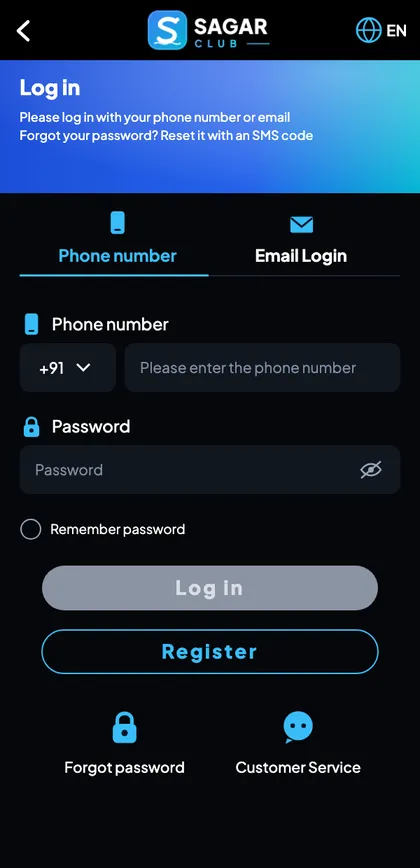
Phone login is the default and the one almost everyone uses. Here’s each part of the screen and what to watch for.
| Part | What to know |
|---|---|
| Phone number tab | Selected by default – leave it |
| +91 box | Already filled for India; don’t type +91 again |
| Number field | Exactly 10 digits |
| Password field | Case-sensitive; eye icon shows it |
| Remember password | Tick only on your own phone |
| Log in button | Grey until both fields are filled |
| Forgot password | Opens the SMS reset |
| Customer service | Opens live chat |
Typing the number correctly
The number box wants ten digits and nothing else. The most common mistakes are a leading 0 (as in 098…), typing +91 when it’s already in the country box, a space in the middle from copy-paste, or a digit swapped. If your keyboard inserts a space automatically, tap the field and delete it. A wrong digit doesn’t give a helpful error – it simply looks for a different account.
Typing the password correctly
Passwords are case-sensitive. Phone keyboards love to capitalise the first letter, and some add a full stop after a double-space. Tap the eye icon so you can see exactly what you typed. If you saved the password in your phone’s password manager, let it fill the field instead of typing.
What ‘Remember password’ does
Ticking Remember password keeps you logged in on that device. It’s fine on your own phone, risky on a family tablet, office computer or a friend’s phone. If you ticked it somewhere you shouldn’t have, log out there or change your password to end the saved session.
Sagar Club login with email
Email login is a backup, not a separate account. It only works after you’ve bound an email address in your profile. The password is the same one you use with your phone number.
- On the login screen tap the Email Login tab.
- Type the full email address – including the part after @.
- Type your usual Sagar Club password.
- Tap Log in.
Email login is most useful when your SIM is lost, damaged or abroad – the moments you can’t receive SMS. That’s exactly why it’s worth binding an email on day one, before you need it.
Email login says ‘account does not exist’? You never bound that email. Use phone login and add the email in your profile afterwards.
Sagar Club login on the app
The app (Android) or home-screen app (iPhone) remembers your login, so most days you just tap the icon and land in the lobby. You’ll only see the login screen after logging out, after an update, when you’ve signed in on another device, or if the app’s data was cleared.
| What you see | What it means |
|---|---|
| Opens straight to lobby | Already logged in – nothing to do |
| Shows login screen | Log in with number + password |
| Shows ‘session expired’ | You logged in elsewhere – log in again |
| Spins and does nothing | Update the app or switch network |
If you haven’t installed the app yet, see Sagar Club app download; for Android file safety read the APK guide.
Sagar Club login on iPhone
On iPhone, Sagar Club runs as a home-screen web app added from Safari. Login works exactly like Android. Two iPhone-specific things trip people up: Private Browsing (which forgets your login when you close it) and the setting Block All Cookies (which stops the login sticking at all). Both are covered on the Sagar Club iPhone page.
Sagar Club login on PC or laptop
Any modern browser works – Chrome, Edge, Firefox or Safari. The site opens in a phone-shaped column in the middle of your screen; that’s by design. Use Ctrl + (Cmd + on Mac) to zoom if the text is small.
- On a shared or office computer, use a private / incognito window.
- Don’t let the browser save the password on a computer that isn’t yours.
- Log out from Account → Log out before closing the window.
More detail, including which browsers behave best, is on Sagar Club login on PC.
Every Sagar Club login error, explained
Error messages on the login screen are short. Here’s what each one really means and the fastest fix.
| Message | Usual cause | Fix |
|---|---|---|
| Account does not exist | Number not registered, or typed with 0/+91, or a different SIM | Type exactly 10 digits; try your other number |
| Incorrect password | Typo, caps, auto-capitalised first letter, old password | Show password; after two tries, reset it |
| Too many attempts | Several wrong passwords in a row | Wait 15–30 minutes; then reset instead of guessing |
| Network error / timeout | Weak signal, VPN, captive Wi-Fi | Switch Wi-Fi ↔ data; turn off VPN |
| Session expired | Logged in on another device, or idle too long | Log in again; check alerts if it wasn’t you |
| Account restricted | Security hold or rules review | Contact support with your UID |
For the long version of each, with screenshots-style walkthroughs, see Sagar Club login problems and account locked.
Forgot your Sagar Club password?
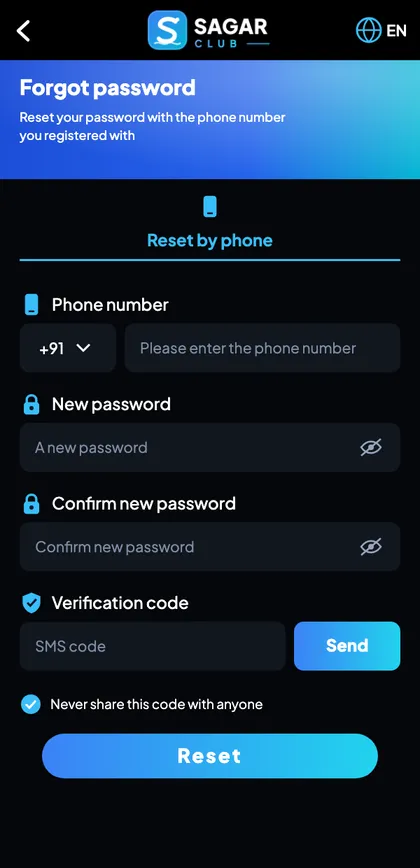
Resetting is self-service and takes about two minutes, provided you still have the SIM you registered with.
- Tap Forgot password on the login screen.
- Enter your registered number.
- Type a new password twice.
- Tap Send, enter the SMS code.
- Tap Reset and log in.
No SMS? Follow OTP not received. Lost the SIM? Support can verify you another way. Full guide: Sagar Club forgot password.
Logging in after a long break
Coming back after weeks or months? The app may have changed, and so may your phone. Do these in order:
- Update the app – or download it fresh from the official site.
- Try your usual password once, carefully.
- If it fails, reset it straight away rather than guessing (guessing triggers locks).
- Check the linked number is still yours – if not, see new phone number.
- Once in, review notifications for any login alerts you missed.
Logging in on two phones
You can use one Sagar Club account on more than one device, but not always at the same time. To protect accounts, a fresh login can end the older session – the first phone will show ‘session expired’ next time it loads. That’s normal. If you see it when you didn’t log in elsewhere, someone else may have your password: change it now.
Two people sharing one account is a different matter – each person should register their own account with their own number.
Keep your Sagar Club login safe
Do
- Use a unique password (8+ characters).
- Bind an email as a backup login.
- Turn on login alerts.
- Bookmark the official address.
- Log out on shared devices.
Never
- Share an OTP – with anyone.
- Type your password on a forwarded link.
- Install ‘mod’, ‘pro’ or ‘hack’ versions.
- Let a ‘support agent’ remote-control your phone.
- Reuse your email or UPI password.
The full checklist – including what to do if you think someone else got in – is on Sagar Club account security.
What you see after login
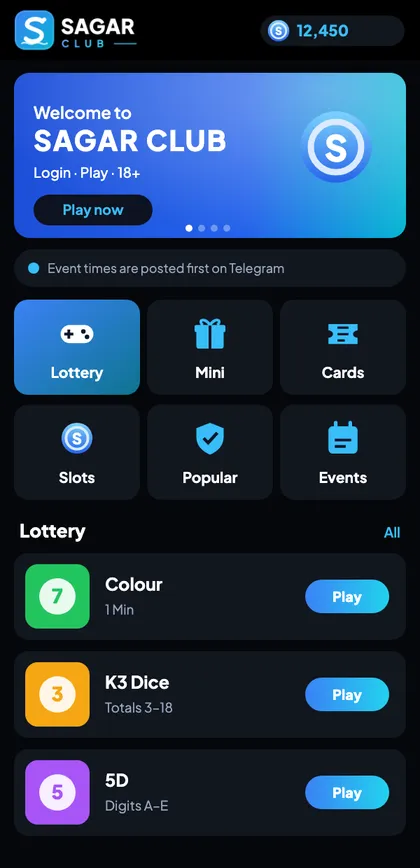
A successful Sagar Club login opens the lobby. Across the top are your nickname and UID; below that a banner and a notice line; then six category tabs – Lottery, Mini, Cards, Slots, Popular and Events; and finally the list of rooms in the selected tab.
New here? Our lobby guide walks through every tab, and how to play gets you through a first round calmly.
Login vs register: which one do you need?
| Your situation | Use |
|---|---|
| Never used Sagar Club | Register |
| Have an account, know the password | Login |
| Have an account, forgot password | Forgot password |
| New phone, same number | Login |
| New number | New phone number guide |
| ‘Number already registered’ on register | Login instead |
| ‘Account does not exist’ on login | Check the number, then register |
A quick word on accessibility
Struggling to read the screen? Increase your phone’s font size or display zoom – the Sagar Club app follows system settings. On a laptop, browser zoom works well. Password managers (Google Password Manager, iCloud Keychain) fill the login fields for you, which also avoids typos.
Sagar Club login checklist
- Official app or bookmarked address.
- 10-digit number, no 0, no spaces.
- Password typed carefully (eye icon).
- Latest app version.
- VPN off, decent signal.
- After two wrong tries: reset, don’t guess.
- Login alerts on once you’re in.
Real login situations, solved
Generic advice only goes so far. Here are the situations people actually describe when they can’t get into Sagar Club, and what fixed each one.
“It worked yesterday, today it says incorrect password”
Nine times out of ten, the password didn’t change – the keyboard did. A keyboard update, a new phone or switching language can turn on auto-capitalisation or swap a symbol. Tap the eye icon and read what you typed letter by letter. If it really doesn’t work, reset it rather than trying variations – guesses count towards the lock.
“I changed my phone and now I can’t log in”
A new phone doesn’t change your account. Install the app fresh from the official site, then log in with the same number and password. If you used to rely on ‘Remember password’ and never actually knew the password, use forgot password – the SMS goes to your SIM, not your old phone.
“I changed my SIM card number”
This is the one case where login alone can’t help, because the account is tied to the old number. If you bound an email, use email login first, then update the number from your profile. If you didn’t, contact customer support with your UID. Full process: new phone number.
“The Log in button just spins”
That’s a connection or version problem, not a password problem. Try in this order: switch from Wi-Fi to mobile data (or back), turn off any VPN or data-saver, close and reopen the app, update the app. On a browser, open a private tab – if it works there, clear the normal tab’s cache.
“It logs me out every few hours”
Two usual causes: you’re logged in on a second device that keeps taking over the session, or your phone’s battery saver is clearing the app’s data. Log out on devices you don’t use, and exclude Sagar Club from battery optimisation (Settings → Battery → App battery usage). If neither applies, change your password – someone else might be logging in.
“I got a login alert, but it wasn’t me”
Act straight away: change your password from your own device, check the login security list in your profile, and message support with the time of the alert. Then think back – did you type your password into a forwarded link recently, or share an OTP? That’s how it usually happens.
“My child / parent wants to use my account”
Don’t share. Sagar Club is strictly 18+, and shared accounts cause constant logouts and can be restricted. An adult family member who wants to play should register their own account with their own number.
Where Sagar Club login data lives
Understanding this saves confusion. Your account – number, password, UID, history, VIP level – lives on Sagar Club’s servers, not on your phone. Your phone only keeps a ‘session’: a small token that says ‘this device is logged in’. That’s why:
- Deleting the app doesn’t delete your account.
- A new phone can log in to the same account instantly.
- Clearing app data or browser cookies logs you out but loses nothing.
- Changing your password ends sessions on other devices.
Login on slow or patchy internet
Rural networks, crowded trains and weak building signal all cause login timeouts. The login itself needs very little data – it’s the lobby afterwards that’s heavier. A few things help:
| Symptom | What helps |
|---|---|
| Login times out | Wait for 2+ bars or connect to Wi-Fi, then try once |
| Lobby loads half-way | Stay on the Lottery tab – it’s the lightest |
| Games won’t open | Heavier games (slots, live, fishing) need better signal |
| Constant ‘network error’ | Turn off data saver and VPN; restart the phone |
Phone login vs email login vs PC login
| Phone | PC browser | ||
|---|---|---|---|
| Login ID | Mobile number | Bound email | Number or email |
| Needs SIM? | No (only for resets) | No | No |
| Best for | Daily use | Lost or abroad SIM | Bigger screen |
| Stays logged in | Yes (app) | Yes (app) | Only if you allow |
| Risk | Low on own phone | Low | Higher on shared PCs |
What Sagar Club support will and won’t do
Support can
- Explain an error message.
- Verify you and update a lost number.
- Lift a security hold after checks.
- Look into a login alert you didn’t recognise.
Support never
- Asks for your password.
- Asks for your OTP.
- Asks you to install a remote-control app.
- Messages you first on WhatsApp or Instagram.
Message support from inside the app (Account → Customer service). Include your UID, the exact error text and roughly when it started. Short, specific messages get faster answers.
Sagar Club login glossary
| Word | Meaning |
|---|---|
| Session | One logged-in device |
| UID | Your unique account number |
| OTP | One-time SMS code for register and reset |
| Bind | Link an email to your account |
| Security hold | Temporary pause after unusual activity |
| Login alert | Notification when a new device signs in |
More words explained in the Sagar Club glossary.
How the Sagar Club login actually works
When you tap Log in, the app sends your number and password to Sagar Club’s servers over an encrypted connection. The server looks up the account linked to that number, checks the password, and – if both match – sends back a session token. Your device stores that token; that’s what ‘staying logged in’ means. Every time you open the app afterwards, it shows the token instead of asking for your password again.
This explains several things people find confusing. Logging in on a new device creates a new token, which may cancel older ones. Clearing app data or browser cookies deletes the token, so you have to log in again – but nothing about your account changes. Changing your password invalidates every token at once, which is why it’s the fastest way to kick out anyone who shouldn’t be there.
Why there’s no OTP at login – and why that’s fine
Some apps send a code every time you log in. Sagar Club uses the code at the two moments that matter most – creating an account and resetting a password – and relies on your password plus login alerts the rest of the time. The trade-off is convenience: you’re not waiting for an SMS every morning. The responsibility it puts on you is to keep the password unique and to act on alerts. If you get a ‘new login detected’ you don’t recognise, change your password immediately.
A careful login, walked through slowly
Let’s say it’s your first login after registering on another phone. You open the app and see the welcome screen. You tap Log in, and the phone-number tab is already highlighted. The country box shows +91. You tap the number field and type 98xxxxxx10 – ten digits, no 0 in front. You tap the password field; the keyboard wants to capitalise the first letter, so you check with the eye icon and correct it. You leave ‘Remember password’ unticked because this is a shared tablet. You tap Log in, the button shows a short spinner, and the lobby appears with your nickname at the top.
Before you play anything, you open Account and glance at login security – there’s one session, this one. You close the app when you’re done and, because it’s a shared tablet, you tap Log out first. That’s a perfect login: the right place, the right details, and no session left behind.
Signs you’re on a fake login page
| Warning sign | Why it matters |
|---|---|
| You arrived from a forward, ad or video link | Common source of fakes |
| The address has an extra word, letter or odd ending | Look-alike domain |
| The page asks for an OTP to log in | Real login doesn’t need one |
| A pop-up promises a bonus for logging in now | Pressure tactic |
| After login it shows an error and asks you to ‘verify’ again | They’re collecting more data |
If any of these happened, close the page, open Sagar Club from the installed app or your bookmark, and change your password straight away.
If you share a phone with family
Many households share one phone, and that’s where accounts most often get mixed up. Keep it simple: don’t tick ‘Remember password’, log out after every session, and don’t save the password in the shared phone’s browser. If someone else in the family is an adult who wants to play, they need their own account with their own number. Sagar Club is 18+; use your phone’s app lock so younger family members can’t open it.
Login after a password reset
After a reset, the old password stops working everywhere at once. Every device will ask you to log in again. Update the password in your password manager first, then log in on each device you actually use. If a device you don’t recognise was logged in before the reset, that session is now gone – which is exactly what you want.
Login and your UID
Your UID is shown at the top of the lobby and on the Account page. It never changes, even if you change your number or nickname. It’s not secret in the way a password is, but it’s still better not to post screenshots that show it next to your phone number. Support will ask for it whenever you have a login problem, so it’s worth writing down.
Quick login fixes, by device
| Device | Try first |
|---|---|
| Android app | Update; clear cache; switch network |
| iPhone web app | Turn off Private Browsing; allow cookies; re-add from Safari |
| Chrome on phone | Private tab test; clear site data |
| Laptop | Zoom out; disable ad-blocker; try another browser |
Open Sagar Club the right way
Use the official app or website – one Sagar Club account works for login on every device.
Frequently asked questions
What do I need for Sagar Club login?
Your registered mobile number (or bound email) and your password.
Does Sagar Club login need an OTP?
No. Codes are only sent when you register or reset a password.
Why does it say ‘account does not exist’?
The number was typed with an extra 0 or +91, or you registered with a different SIM.
How many wrong passwords before a lock?
A few. After two failed attempts it’s smarter to reset than to keep guessing.
Can I log in with email?
Yes, if you bound an email in your profile.
Is the login the same on the app and the website?
Yes – one account, one password, every device.
Why was I logged out?
Usually a login on another device, a cleared cache or an app update.
Can support log in for me?
No, and nobody genuine will ask for your password or OTP.
Can I log in to Sagar Club without a SIM?
Yes, with email login – if you bound an email. Normal phone login doesn’t need the SIM either; only password resets do.
Why does Sagar Club log me out after I change my password?
Changing the password ends other sessions on purpose, so anyone who knew the old password is kicked out.
Is it safe to save my Sagar Club password in Chrome?
On your own phone with a screen lock, yes. On shared devices, no.
Does a VPN affect Sagar Club login?
It can cause timeouts. Turn it off if login fails.
I see someone else’s nickname after logging in. Why?
You logged into a different account – check the number you typed.